How to edit iPhoto images using another application

by Ross McKillop on August 13, 2008

Mac

When you click the Edit button with an image selected in iPhoto, the internal editor opens. If you’d like to use a different image editor when clicking edit, follow the steps outlined below.

  1. Open iPhoto and select iPhoto -> Preferences… from the main menu.
  2. iphoto preferences from the main menu

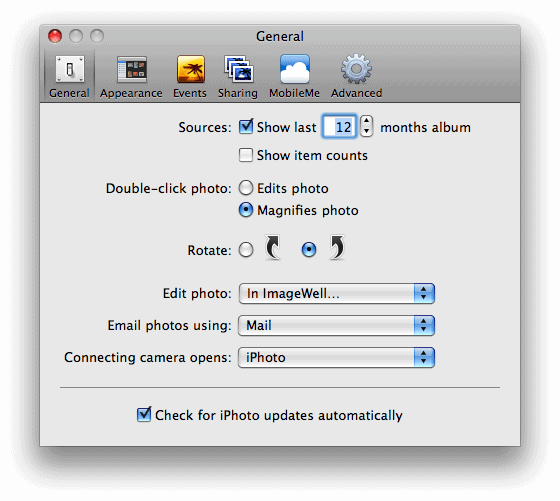
  3. On the General tab, select drop-down menu next to Edit Photo:. Choose In Application… from that list.

  4. click to enlarge

  5. Navigate to the image editor you want to use to edit your iPhoto images. Select it and click Open.

  6. click to enlarge

  7. Exit out of the iPhoto Preferences.

  8. click to enlarge

  9. And now when you click the Edit button, your image editing application of choice will launch, and load the selected photo(s).
  10. iphoto edit button

Related Posts:
  • How to rebuild a corrupt iPhoto 08 database
  • Quicksilver tutorial and screencast roundup
  • Folder Actions for OS X explained - with real-world examples
  • Overview: Mailplane - a Gmail client for OS X (plus beta invites)
  • How to run Web Applications from your OS X desktop
  • Get Simple Help tutorials just like this one in your email inbox every day - for free! Just enter your email address below:


    You can always opt out of this email subscription at any time.


    Bookmark and Share

    { 0 comments… add one now }

    Leave a Comment

    You can use these HTML tags and attributes: <a href="" title=""> <abbr title=""> <acronym title=""> <b> <blockquote cite=""> <cite> <code> <del datetime=""> <em> <i> <q cite=""> <strike> <strong>