This brief tutorial will show you how to disable (turn off) the system sounds in Windows XP. Because they’re annoying.
The steps outlined below won’t disable sound in Windows XP, they’ll disable the “system sounds” – the beeps and other annoying noises that are built into the operating system.
- Start by clicking the Start button and selecting the Control Panel
- If you’re using the Category view, you’ll be presented with a very similar screen as the one below. If you’re using the Classic view, please jump down to Step 4 below.
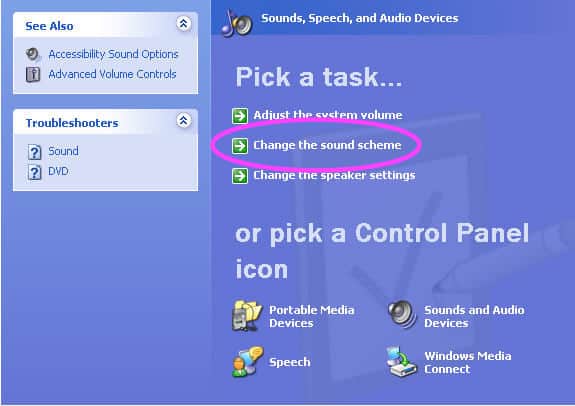
Select the Sounds, Speech, and Audio Devices icon.
click to enlarge
- Click the Change the sound scheme option and then skip down to Step 5 below.
click to enlarge
- If you’re using the Classic view of the Control Panel, double-click the Sounds and Audio Devices item.
click to enlarge
- Now select the Sounds tab from the top (if it isn’t selected already) and then from the Sound scheme: drop down list. Finally, choose No Sounds.
click to enlarge
- If you’re prompted to save your previous sound scheme, click Yes
click to enlarge
- Give it a name – it really doesn’t matter what. When you’re done, click OK, and then OK again. Ta-da! You have now disabled system sounds in Windows XP – no more annoying Windows XP sounds!
Though XP is certainly old (and Microsoft strongly advises you upgrade), it is still in use. If you need any additional help with Windows XP, try running a search for Windows XP here on Simple Help.



View Comments
Thanks!!
thanks
Since you were so kind as to provide me with the answer to end my Windows audio torment, I thought I should take the time to say, very sincerely, Thank You..
No more beeps, clicks, pops, cords, hums, etc. Just silent computing.
Thank you so much for making it simple getting that annoying beep to stop.
my ears thank you :)
Thanks worked great
thank u
Yes! Device Mgr solution worked - hope it stays that way!
Thanks Thai!
That has worked perfectly for me, and stopped the annoyance of beeping computers all around us at work.
Thanks for solving our problem, and taking away the headache.
Great tip! Noticed how the PC boots up, shuts down and generally does tasks faster without sounds.
By the way, does anyone know how to terminate unresponsive apps faster?