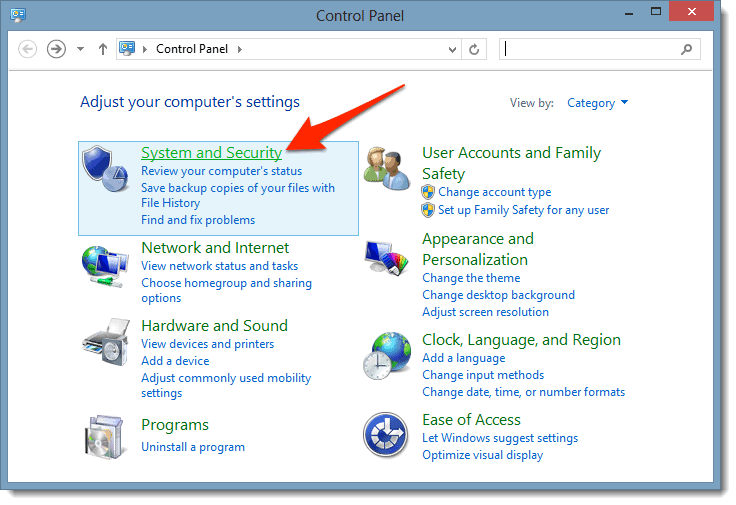
This guide will take you every step of the way through creating a “firewall rule” in Windows 8 that will block any program of your choice from connecting to the Internet.
Update: If you’re using Windows 10, you’ll want to see this tutorial instead.
There are a whole slew of reasons you may want to block a program from accessing the Internet. Here are the instructions to do it if you’re using Windows 8 on your PC.
Please Note: the screenshots used in this tutorial are ‘clickable’ – if you have trouble viewing them, simply click the image and the ‘full size’ version will be displayed.
If you have any difficulty finding the program you want to block, check the sub-folders in C:\Program Files (x86)\ and C:\Program Files\ – those two folders store most of the programs on your PC.



View Comments
Nice! Thank You for Your Post.
I want to block all the apps except firefox & IDM . Is it possible to allow only one or two apps and others remain blocked . It is very tough to block one by one . Please update this . Thank you , Very helpful tutorial.
@fghhghgcgh:disqus - Yes - it's possible, pretty easy too. In step #9 of this tutorial, select "All Programs" instead of "This program path:". That will take you down a 'different path' that will result in blocking *all* of your programs from accessing the Internet. Then, go back and create two "Incoming" Rules - that allow (in your case) Firefox and IDM. Those two 'allow' rules will overwrite the 'block all' rule for those two programs.
Thank you sir for the reply but I cannot understand the step suggested by you "Incoming" Rules . Is it "Inbound Rule " ? My all internet access is blocked as your tutorial , but I have created a new inbound rule for firefox , but still firefox cannot get access to the internet . Please help me .
@fghhghgcgh:disqus - yes, sorry, "Inbound" _and_ "Outbound" rules that "allow" Firefox and IDM.
Sir Please help me , as I use Limited broadband connection so I need it. I have created a "all blocked rule" , and it worked , no programmes get access to internet according to your tutorial, but I cannot allow firefox & IDM . I have created another New rule to allow firefox but firefox cannot get any internet. The internet icon in the task bar also showing " ! " sign and showing No internet access . But get internet access when I am disabling that rule. How can I solve this. Thank you once again.
I'm not sure why the icon in the Task Bar is showing an exclamation mark. I'd suggest going to Microsoft directly for help at this point - http://windows.microsoft.com/en-us/windows-8/windows-firewall-from-start-to-finish is a great starting place. I would suggest resetting everything back to the defaults, and then start at the tutorial/guide in this comment. Your PC may have additional software that Windows uses to manage your Wifi/Network Card, and if that software is blocked as well, I'm not sure what it would do to your Internet connection (might explain the explanation?).
Without being there in front of your laptop, it's a bit too hard to troubleshoot. Again, start w/ the Microsoft article in this comment and take it from there. You should be able to do it with minimal issues once you get it figured out. Cheers!
is there any software by which i can stope it more than easyly??????????
very helpful. thanks
so tnx bro
Great post
I can't thank you enough; this was a lifesaver.
No doubt we'll done, thanks
Amazingly clear and helpful instructions!! Thanks!
Thanks, bro!
That helped me a lot!