

This guide will explain step by step how to run Windows apps in a completely safe and isolated environment (a “sandbox”) so that anything that happens while you’re using that app is completely separated from Windows itself.
A “sandbox”, in terms of computer security, is an environment that’s completely separate from everything else. If you run an App inside a sandbox, anything that happens in that App will remain inside the sandbox. For example, if you run a web browser inside of a sandbox and you visit a web site that contains malware which automatically installs on your computer, that malware will be contained in the sandbox. It’s a super safe way to run questionable programs or visit questionable web sites. Here’s how you can run Windows Apps inside of sandbox –
- First, visit sandboxie.com to download Sandboxie. Sandboxie is a free program, and the source code has been made public.
- Towards the end of your Sandboxie installation you’ll be prompted to install and activate the Sandbox system-level driver. Carefully review the info on how to boot into safe mode in case something goes wrong at this point. I’ve used this program on several different machines and it has never caused a problem, but the disclaimer is there for a reason.. Click Next to install the driver.
- Once the installation has completed, Sandboxie will check your system to make sure all of the software is compatible. If it finds anything that it’s unsure of, it will ask you to click OK to update the configuration settings of your sandbox(es). It will not alter the software itself.
- At this point Sandboxie will take you through an ‘introduction’ – a series of explanations of what the software can do and how to use it. Click Next to get started.
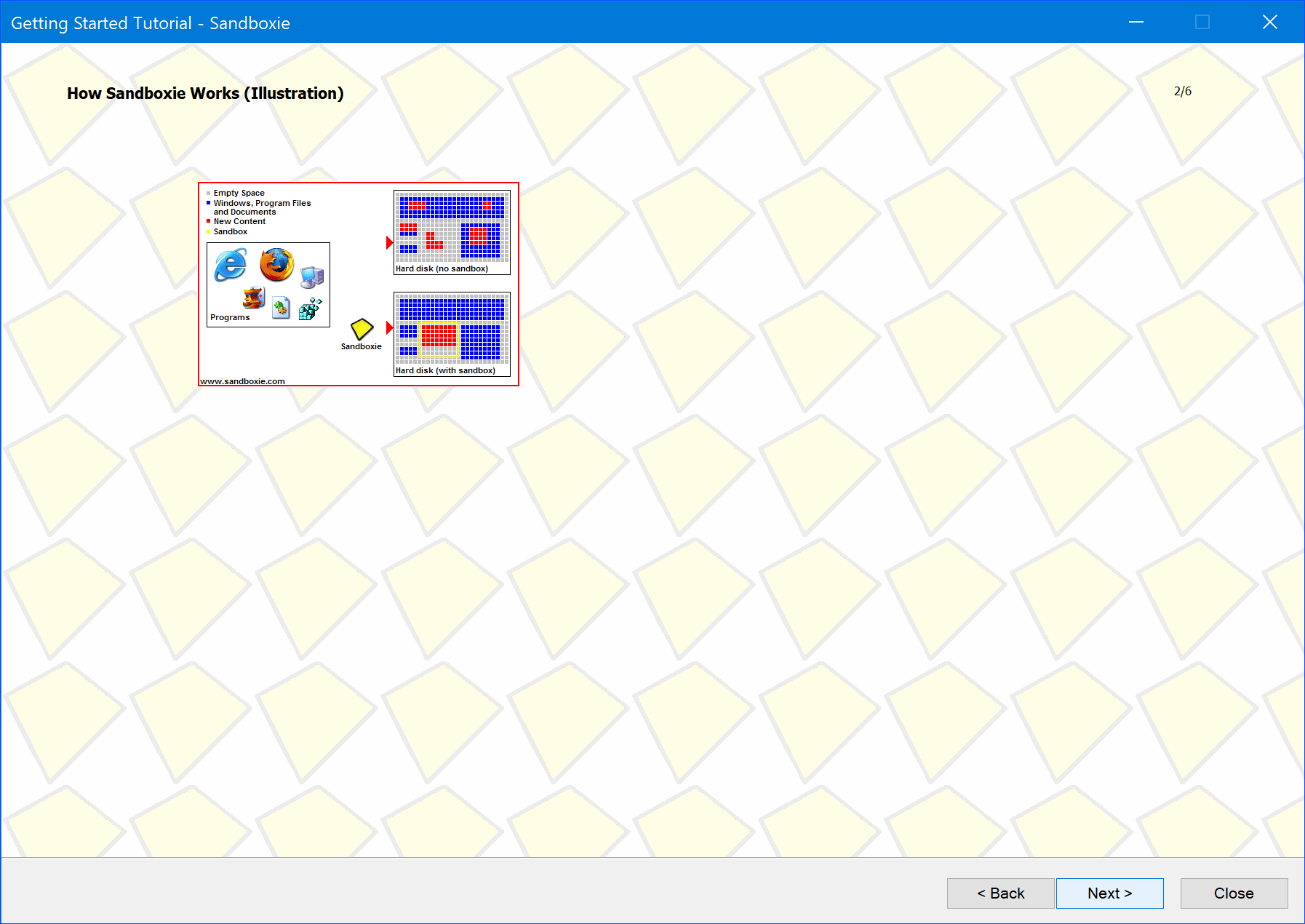
- You’ll get an illustrated explanation of the concept of sandboxing. After you’ve reviewed it, click the Next button.
- Sandboxie explains that it will create a desktop shortcut to auto-launch your browser in a sandbox. Click Next
- Now you’ll get an explanation of how Sandboxie deals with files that are downloaded from an App running inside of the sandbox. Click the Next button to continue.
- The next introduction window lets you know how to delete the contents of a sandbox.
- You’ll also be prompted to actually delete the contents of a sandbox by right-clicking on the Sandboxie icon in your system tray.
- Give it a shot – right-click the yellow Sandboxie icon in your system tray, select the default sandbox, named DefaultBox and then choose Delete Contents
- At this point the introduction wizard is done. Click the Finish button.
- The main Sandboxie window will be displayed. Let’s run a Windows app safely inside of a sandbox.
- There are a number of ways to launch an App inside of a sandbox. Click the Sandbox menu item, select DefaultBox, then Run Sandboxed and finally Run From Start Menu
- Select Programs from the context menu. A list of all the programs installed on your PC will be listed. For this example I’m going to choose Firefox as the App to run inside of a sandbox.
- Once you run an App inside of a sandbox, Sandboxie will display that App inside the main window.
- You’ll be able to tell an App is running inside of a sandbox because it will have a yellow line surrounding it.
- That pretty much covers it. If you have any questions by all means please feel free to leave a comment below.




While you’re here, check out some of our other Windows tips and tutorials.
