This tutorial will guide you through the steps required to search for and play YouTube videos from directly inside of the Ubuntu Totem Media Player. Also included are the steps required to watch the higher quality H264 videos that YouTube now includes.
Please note: This guide was published back in 2008 and is now considered out of date. The media player currently included with Ubuntu does not have this functionality. Our suggestion would be to watch YouTube videos in VLC.
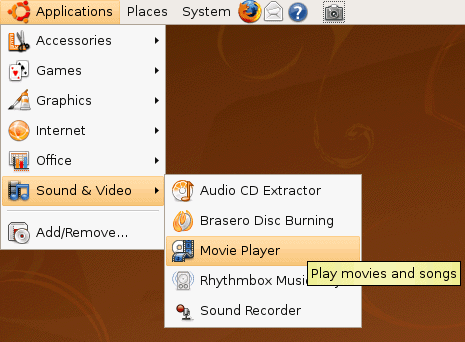
- To get started, click Application -> Sound & Video -> Movie Player.
- Select Edit -> Plugins…
- Place a check in the box labeled YouTube browser and click Close.
- Select YouTube from the box in the upper-right corner of Totem. Now run a search, and Totem will search YouTube for your keyword or phrase. Double-click a video to watch it.
- If you get an error similar to the one below (do not have the appropriate plugins to handle it), have no fear, this is easily resolved.
- Lauch Synaptic (select System -> Administration -> Synaptic Package Manager. Run a search for gstreamer, and then locate gstreamerX-XX-plugins-bad. Mark it for installation and then intall it. If you need help using the Synaptic Package Manager, see this tutorial.
- After all the software has installed, close down Totem Media Player and launch it again. Try running a search for YouTube videos, and double-click one to play it. AGAIN, you may need to install more software. This time just click the Install button.
- When that software has finished installing, once again close Totem, re-launch it, search for a video and double-click it. This time, you should have no problems watching the video.
- With a tiny bit of extra work – you can also get Totem to play the higher-quality h264 videos on YouTube as well. Download this file. When downloading the file, select Open with and make sure GDebi Package Installer (default) is selected. Click OK.
- Now click Install Package.
- When it’s done, close the Package Installer, and one more time, close and re-open Totem.
- Go back to the Plugins page, and place a check in the box labled YouTube H264 browser. Click Close.
- Now select YouTube H264 from the menu in the upper-right corner of the sidebar, and run a search. Double-click a result and this time you’ll be playing the H264 higher quality video. Choose Properties to confirm if you’d like.
- Now you don’t need to open your browser to watch YouTube videos.