How to disable the system sounds in Windows XP

by Ross McKillop on September 24, 2006

Windows

This brief tutorial will show you how to disable (turn off) the system sounds in Windows XP. Because they’re annoying.

  1. Start by clicking Start and selecting the Control Panel
  2. disable xp sounds

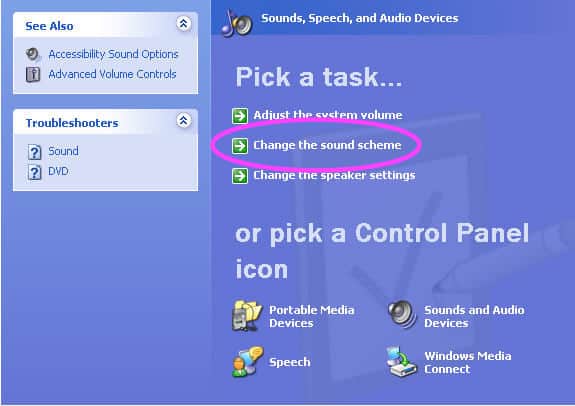
  3. If you’re using the Category view, you’ll be presented with a very similar screen as the one below. If you’re using the Classic view, please jump down to Step 4.

    Select the Sounds, Speech, and Audio Devices icon.

  4. disable xp sounds
    click to enlarge

  5. Select Change the sound scheme and then skip down to Step 5
  6. disable xp sounds
    click to enlarge

  7. If you’re using the Classic view of the Control Panel, double-click the Sounds and Audio Devices item
  8. disable xp sounds
    click to enlarge

  9. Select the Sounds tab from the top (if it isn’t selected already) and then from the Sound scheme: drop down list, choose No Sounds
  10. disable xp sounds
    click to enlarge

  11. If you’re prompted to save your previous sound scheme, click Yes
  12. disable xp sounds
    click to enlarge

  13. Give it a name - it really doesn’t matter what. When you’re done, click OK, and then OK again. Ta-da! No more annoying Windows XP sounds!
  14. disable xp sounds

Related Posts:
  • How to disable the system sounds in Windows Vista
  • How to disable Remote Assistance and Remote Desktop in Windows XP
  • How to disable some of the unnecessary features and services in Windows Vista
  • How to disable the balloon tips in Windows XP
  • Improving Windows Vista with TweakVI
  • { 13 comments… read them below or add one }

    1 adam 12.08.06 at 11:59 pm

    I tried turning the sounds off with the above message, but now I get an annoying loud beep if I adjust the volume (rather than the “Windows XP Ding” that I was getting.) Is there a way to make that go away?

    2 Tom 12.17.06 at 5:50 am

    I echo Adam’s situation, with the addition that every time an email comes in, I get that loud beep as well.

    3 Eric Belec 02.12.07 at 6:18 pm

    If you go into the registry …

    1.) Go to “Start–>Run” and type “Regedit” in the command prompt. Then hit OK.
    2.) Navigate to “HKEY_CURRENT_USER\Control Panel\Sound”
    3.) Right click on “Beep” on the right side of the screen and select “Modify”
    4.) Change the value in the box to “No”
    5.) Exit and reboot the computer.

    This should fix that problem. email me at “ericbel_2@hotmail.com” and let me know if it works please.

    4 selva 04.28.07 at 7:08 am

    Nice tut..
    Worked for me..
    Thanks a lot Eric.
    Also, Eric, the registry tweak was sweet..
    Now Only mp3 sounds emanate from my comp.. :)
    No more irritating windows critical stop and other damn noises..
    Thanks again!!

    5 Mind Power 08.01.07 at 1:29 am

    Great tip! Noticed how the PC boots up, shuts down and generally does tasks faster without sounds.

    By the way, does anyone know how to terminate unresponsive apps faster?

    6 priya 08.30.07 at 10:00 am

    hi.. i tried doing the above.. but all in vain.. please suggest some other way to disable system sound

    7 Jim Stewart 09.28.07 at 1:24 am

    Thx for the tut on “No Sounds”. Eliminated irritating beep that you get even though you’ve saved “no sounds” as a custom.

    8 sillygal 10.09.07 at 4:19 pm

    i try all the method above and it still cannot solve my problem, any suggestion please.

    9 satya 10.21.07 at 9:44 am

    hi….there is not voice recording in my windows xp pc…
    someone plz tell me how to enable it.
    i hav check all the settings are allright

    10 Accenture 06.12.08 at 4:18 am

    Thanks Eric Belec

    That has worked perfectly for me, and stopped the annoyance of beeping computers all around us at work.

    Thanks for solving our problem, and taking away the headache.

    11 SURESH 07.03.08 at 6:25 am

    EASIET WAY..

    simply mute the PC Speaker (Volume–>Advanced)(5th screen shot of this article)

    12 Peter 07.14.08 at 10:19 pm

    After some updates system sounds are enabled
    again. I am sick! How to disable system sounds definitely? Remove speaker?

    13 Thai 07.18.08 at 12:23 pm

    Try this…
    Device manager –> View, check “show hidden devices”—> non-plug and play Drivers; right click “beep” and disable.. i think this may be little safer the messing with registry and is more permanent….hopefully.

    Some other annoying Windows stuff in there to disable also…enjoy..and hope this works for ya.

    Leave a Comment

    You can use these HTML tags and attributes: <a href="" title=""> <abbr title=""> <acronym title=""> <b> <blockquote cite=""> <cite> <code> <del datetime=""> <em> <i> <q cite=""> <strike> <strong>