Skip to content


How to play MP3 files in Fedora

Linux

First, a tiny bit of history. You can skip this entirely and just get to the tutorial if you’d like.

Why doesn’t Fedora support MP3 ‘out of the box’?

Fedora cannot include support for MP3 or DVD video playback or recording. MP3 formats are patented, and the patent holders have not provided the necessary licenses. Fedora also excludes other multimedia software due to patent, copyright, or license restrictions, such as Adobe Flash Player and RealNetworks RealPlayer.

That doesn’t mean you can’t play .mp3 files in Fedora, it just takes a bit of work (not much).

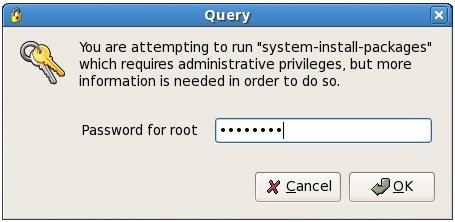
If you’ve seen the following screen (or something familiar), follow the steps below and you’ll be playing MP3s in Fedora in no time at all.


I’ve tried a number of tutorials, steps and guides – the following tutorial is almost certainly not the only way to get MP3s playing, but it’s the one that worked for me, with the least hassle.

  1. Start by clicking Applications and then select Add/Remove Software.
  2. When prompted for your root password, enter it and click OK.

  3. click to enlarge

  4. Select Applications from the left column, and then Sound and Video from the right column. Make sure to place a check in the Sound and Video entry. Click the Optional packages button.

  5. click to enlarge

  6. Scroll down to xmms – version number – The X MultiMedia System, a media player and place a check in the box next to it. Click Close.

  7. click to enlarge

  8. Back at the Package Manager window, click Apply. A Package selections window will appear – click the Continue button.
  9. Don’t be surprised (or worried) if an “unable to verify” window appears. Just click Install anyway.

  10. click to enlarge

  11. After a while, you should get a Software installation successfully completed window. Click OK.
  12. Locate an MP3 on your hard drive, right-click it and select Properties from the menu.

  13. click to enlarge

  14. Select the Open With tab at the top, and select Audio Player from the list of applications. Then click Close.

  15. click to enlarge

  16. Now you’ll have to fire up your web browser and head to http://www.gurulabs.com/goodies/downloads.php. On this page, scroll down a bit to the XMMS MP3 Plugin for Red Hat Linux and Fedora Core section, and download the file titled xmms-mp3-1.2.10-16.i386.rpm. Don’t worry that it’s labeled as a file for Fedora Core v4 – it should work with any version of Fedora higher than 4 (for me it worked in 6). Once its finished downloading, double-click it.
  17. Again you’ll be prompted for your root password. Enter it in the space provided and click OK.

  18. click to enlarge

  19. Click Apply to install the package.

  20. click to enlarge

  21. Once it has completed installing, locate an mp3 and double-click it. Ta-da! You can now listen to all your MP3s in Fedora.

Posted in Linux.

Get Simple Help tutorials just like this one in your email inbox every day - for free! Just enter your email address below:


You can always opt out of this email subscription at any time.

36 Responses

Stay in touch with the conversation, subscribe to the RSS feed for comments on this post.

  1. Glen says

    works fine! nice one mate!!

  2. Roy says

    the easiest way to set up your mp3 pluggins

    thanks dude, i really apreciated the howto ;)

    it works 100%

  3. Ross McKillop says

    Roy – glad it helped :)

  4. roy says

    hi

    i came back to tell you that the howto above didn’t work on the x64 desktop that i have at school.
    it’s working fine on my i386 that i have at home

    for all the people that get’s here with the same problem on a x64 pc, follow this link

    just install this repository

    # rpm -ihv http://ayo.freshrpms.net/fedora/linux/7/i386/RPMS.freshrpms/freshrpms-release-1.1-1.fc.noarch.rpm

    and yum this
    # yum -y install xmms xmms-mp3 xmms-faad2 gstreamer-plugins-ugly \
    gstreamer-plugins-bad libmad libid3tag

    i’ve got this from here
    http://www.gagme.com/greg/linux/f7-tips.php#mp3

    thanks again Ross

  5. ZJ says

    Thanks a lot!

  6. bhushan manekar says

    hi..
    whenever i click on Add/remove programs, it is giving me some error message. some sort of ‘can not connect…’ like. i’m using FC7, so what should i do now?

  7. jabesh raja says

    hey man it works , finally i am very happy with fc7

  8. sipu says

    thanks very much

  9. Sid Gadkari says

    Thanks a lot, this totally worked…just one question, how can i select all my mp3s and assign them to open with XMMS? Someone PLEASE let me know!!!

  10. manish says

    ho can i run mp3 files in kubuntu

  11. ha says

    Tks very much !!

  12. jerriguerra says

    How do you get DVDS running?

  13. prakash says

    how to play mp3 in fedora using “aplay” command…

  14. ashfaq says

    how to play .dat,.avi files in fedora7

  15. chethan says

    Thank You very much for the information given..
    It’s really works fine

  16. woody says

    Great howto. Worked great on fedora 9.

  17. Anitha says

    Thank u very much. Now i am enjoying the MP3 melody in Fdora 7 with ur help

  18. Max says

    This works. I can play mp3’s on Fedora Core 5.
    BUT… it still is not a plugin for FireFox!
    If I click on an mp3, I always get the “missing plugin” indication from FireFox, and it invites me to click to go find the plugin, which of course, it then says it can’t find because they don’t have any mp3 plugin at the FireFox website.

    I cannot find any menu or preference in FireFox that will let me tell it, “Look, when you see mp3 files, open the AudioPlayer and just play them”

    How do I do this?

  19. david says

    Works great in fedora 9, what about audacious?, my volume seems low — any fixes?

  20. heydar says

    hiyou are best.i am iranian male and i can play mp3 in my fedora whit ur help.

  21. munna says

    mp3 is not playing in fedora 9.When i play mp3 then a massage not plugin

  22. Rabin Halder says

    Thanks man! It worked nice with me.

  23. Erana says

    Thanks very much, works perfectly on my Fedora 7!

  24. rts says

    Thanks very much, works perfectly on my Fedora 8

  25. SaiedHacker says

    Tanx a lot for useful Informations

  26. Shuvayu Mukherjee says

    Hey Ross, thank you very much!! Works just fie… – Shuvayu

  27. Taras says

    Thank you very much, I followed your simple and useful tutorial, managed to play mp3 files. Thanks a lot mate, real pro

  28. Uzutake_Shikaraiya says

    This works for me in Fedora10.

    Thank you so much, and thanks to guru labs!!!!

  29. xdaemon says

    Tried in Fedora 10, worked for me as well.

  30. rakib says

    whenever i try to play a mp3 file in fedora then a msg coming like “cant play the file”?

  31. Marcos Cassiano says

    oioi Ross.., valeu o TUTO..ajudou,

    brigadão.

  32. Mynameisrat says

    Working perfectly. thanks buddy…

  33. Jwalant Natvarlal Soneji says

    As of today, the XMMS download link is not usable, as there is not XMMS download available.
    Please update on where it can be found!
    Thanks.

  34. Falefel says

    it says Redhat removed plugin for leagal reasons

  35. Fred says

    Hell Yeah!!!!!!Dude!!!!!!!
    Thank YOU Very Much!!!!!!!!!!!!!!!! YOU rock, my friend!!!!!
    Down with Windows!!!!!!!!!!!!!!!!!!!!!!!!!!!!!!!!!!!!!!!!!!!!!!!!!!!!!!!!!!!!

Continuing the Discussion

  1. Fedora Core 7 And Kubuntu « 64 Degrees and Cloudy linked to this post on June 16, 2007

    [...] All said, I am a very happy man now. After installing FC7, I wanted to celebrate by listening to some good music. But alas, FC7 does not have mo3 support because of licensing issues. If you are also one unhappy Fedora user with the same worries, then I can help you. More precisely, Ross McKillop can help you. Just follow his instructions here and you are good to go. [...]


Some HTML is OK

or, reply to this post via trackback.