This short guide will explain step by step how to open RAR Files in Windows so that you can access the contents of the file.
NOTE: the steps in this tutorial are identical if you’re trying to open a .DMG or .tar.gz file in Windows as well – so this guide could just as easily be called “How to Open .RAR, .DMG and .tar.gz Files in Windows” :) Those formats are typically found on Mac and Linux/Unix systems – so being able to open them on a Windows device can be very handy.
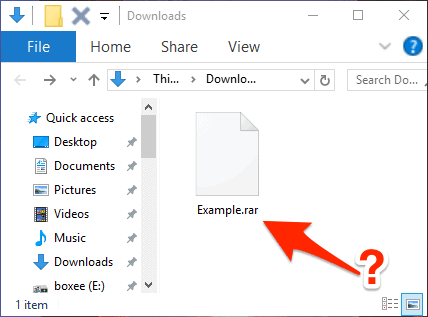
- Going into almost no detail at all, a .rar file is a lot like a .zip file. It’s one or more files/folders all combined into one file – a RAR. Here’s how you open .RAR Files in Windows 10 so you can get to the contents inside.
- Unlike ZIP files, RAR files require software that doesn’t come included with Windows itself. Fortunately there’s a fantastic, small and free app that does let you open .RAR files. Head over to the 7-Zip download page (link opens in a new window/tab) and download the 7-Zip for 64-bit Windows x64 (Intel 64 or AMD64) version of 7-Zip, unless you’re absolutely certain you don’t have a 64-bit version of Windows 10 (to find out which you have, follow this short guide).
- Double-click the 7-Zip installer file to install the app. Make sure to install it to the default location – which is in C:\Program Files\. If you need to install it to another location you can, just make sure to remember exactly where, you’ll need to know in an upcoming step.
- After you’ve installed 7-Zip, double-click (or tap if you have a Windows 10 tablet) the .RAR file you want to open.
- Select More apps from the menu that appears.
- Now select Look for another app on this PC
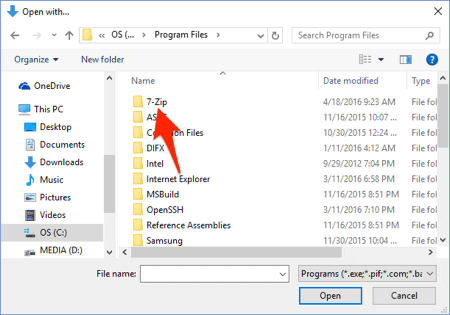
- When the “Open With” dialog box appears, double-click your C: drive and then the Program Files folder (as illustrated in the screenshot below).
- Open the Z-Zip folder.
- Select the file 7zFM.exe and then click Open
- 7-Zip will launch and open the .RAR file. Now it’s time to extract (copy) the files and folders out from inside the RAR. Select all of the files/folders and then click the Extract button.
- By default, the files and folders will be extracted to the same location the RAR file is in – click OK to begin that process.
- Depending on the size and the number of files stored in the .RAR file, it may take anywhere from under a second to a few minutes to copy all of that data. Once the process has completed, all of data that was inside the RAR file is now accessible! Note: the next time you have to open a RAR file you won’t have to repeat this process – the RAR will simply open with 7-Zip.
- That’s it – you’re done!