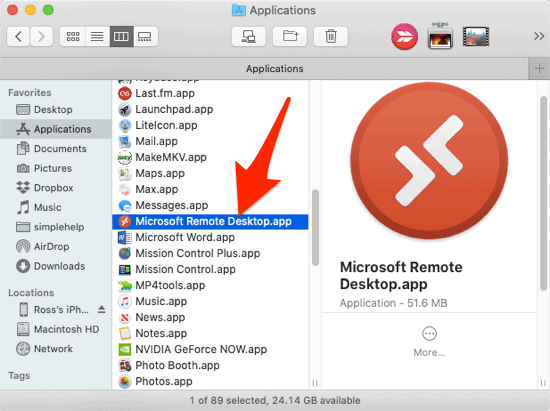
How to connect to Windows Vista using Remote Desktop from your Mac

by Ross McKillop on July 8, 2008

Mac Windows

This tutorial will guide you in enabling Remote Desktop in Vista, and then connecting to Vista from your Mac. Using Remote Desktop you can completely control your Vista PC, from your Mac.

  1. In Vista, open your Control Panel and select System and Maintenance.

  2. click to enlarge

  3. Now select System

  4. click to enlarge

  5. From the panel on the left, click Remote settings.

  6. click to enlarge

  7. The System Properties window should open, with the Remote tab displayed.

  8. click to enlarge

  9. Place a check in the box labeled Allow connections from computers running any version of Remote Desktop (less secure). Unless you’ve set Vista to “never sleep” in the Power Options, you’ll get a little pop-up telling you that when your Vista PC is asleep, users can’t connect to it. Click OK.

  10. click to enlarge

  11. If you have several people using your PC and each has their own profile, and you want to only allow some of them to remotely access Vista, click the Select Users button. Note that anyone with administrative privileges will be able to connect.

  12. click to enlarge

  13. Select the user(s) you want to allow access and click the Add… button. Note: in the screenshot below there are no users, as my Vista PC only has one user. Click OK.
  14. Back at the Remote tab of the System Properties window click Apply and then OK.

    Now return to the Control Panel and in the Security section, click Allow a program through Windows Firewall.


  15. click to enlarge

  16. Make sure that the box labeled Remote Desktop has a check.

    If you’re using a Firewall other than the one built in to Windows Vista, you’ll need to manually allow connections on port 3389 using UDP.


  17. click to enlarge

  18. Now that you’ve finished setting up Remote Desktop in Vista, you’ll need to download a Remote Desktop client for OS X. Head over to http://cord.sourceforge.net and download CoRD v0.5 Beta 1 (or later). Earlier versions of CoRD will not work with Vista. Installing CoRD is as easy as you’d expect - just drag the program to your Applications folder. Launch it from there.

  19. click to enlarge

  20. If the Servers panel isn’t displayed (it should be by default) click the Servers button from the top toolbar. Then click the plus sign (+) button in the bottom right corner of the Servers side panel.

  21. click to enlarge

  22. Enter the IP address your Vista PC is using. If you’re connecting over a local network, enter the IP address assigned by your router/gateway. If you’re connecting across the Internet, and your Vista PC is behind a router, make sure to forward UDP on port 3389 to Vista.

    Then enter the user name and password you use to sign in to Vista. Place a check in Save password if you don’t want to enter it each time. Review the other options and make changes as you see fit (the defaults are good to start with). Close the New Server window when you’re done.


  23. click to enlarge

  24. Double-click the new entry in your Servers list.

  25. click to enlarge

  26. And you’ll connect to your Vista PC. From here you can control Vista as if you were sitting in from of it.

  27. click to enlarge

Related Posts:
  • How to disable Remote Assistance and Remote Desktop in Windows XP
  • How to mount a remote filesystem in Ubuntu
  • How to remotely access your MySQL in a secure manner
  • Windows Vista Service Pack 2 (Beta) Now Available
  • How to use Remote Assistance in Windows XP
  • Get Simple Help tutorials just like this one in your email inbox every day - for free! Just enter your email address below:


    You can always opt out of this email subscription at any time.

    { 3 trackbacks }

    Control a Vista PC from a Mac
    07.08.08 at 11:31 am
    links for 2008-07-09 | The Marketing Technology Blog
    07.09.08 at 11:10 am
    MAC to Vista Using RDP | Windows
    07.09.08 at 12:37 pm

    { 9 comments… read them below or add one }

    1 zahadum 07.10.08 at 11:28 am

    the info does not clarify/explain whether the vista remcon is NOT using a standard vnc based protocol, like osx does …

    is it necessary to download CORD because vista remcon is a proprietary?!

    2 giuseppina testa 07.10.08 at 12:49 pm

    I need the opposite. I’ve got a samsung printer connected via usb to an IMac (leopard).
    On the mac networking is already open, but I cannot find out the periferal in vista. I must say I’m not that cute in windowa world. Thanks

    3 prashant 12.09.08 at 10:03 pm

    i want to connect windows vista to windows XP using Remote Desktop Connection.
    i have done all the above mentioned setting.
    firewall is off.
    i am able to ping the vista machine.
    i am able to connect to vista using VNC.
    but not able to connect using remote desktop connection
    Please help me its urgent

    4 matt 12.16.08 at 4:25 pm

    When I get to step 4- I only have the “Remote Assistance” section under the Remote tab. I don’t have those 3 radio buttons to choose from under the “Remote Desktop” section.
    I have Vista Home Premium and Mac OS X 10.5.5 with RDC 2.0.
    Do you need a higher version of Vista for these features to work??

    5 N 12.22.08 at 4:10 am

    Matt -

    You need Business or Ultimate, Home Premium doesn’t have Remote Desktop. Alternatively, try this -

    http://thegreenbutton.com/forums/permalink/210408/244477/ShowThread.aspx#244477

    Unzip file, open a terminal window with Admin rights, and run the file called Premium.bat. Watch the output and make sure everything’s working.

    I have Home Premium and also use RDC2 to connect from a Mac running 10.5, works fine.

    6 Tom 01.08.09 at 8:43 pm

    Hello, I am trying to allow a friend of mine (a Mac user) to access my Windows Vista Ultimate PC. We downloaded CoRD v0.5 Beta 1 on her Mac, and I setup my computer as you specified. Since she is accessing my computer over the Internet, we were trying to follow step 13 when we got stuck. What is meant by “If you’re connecting across the Internet, and your Vista PC is behind a router, make sure to forward UDP on port 3389 to Vista?” How do I forward UDP on port 3389 to Vista on her computer? Where is port 3389? By “behind a rounter,” do you mean the router has a Subnet Mask ID? Thanks in advance.

    7 Bill 01.14.09 at 6:51 am

    I would also like to know the answer to the question regarding UDP

    8 Ross Brunson 02.20.09 at 7:18 am

    Ross,

    Nice article, very helpful, did the trick immediately, only had to go back and make sure I got the BETA of CORD, missed that the first run through.

    Ross

    9 Citoyen_91 03.28.09 at 11:20 pm

    Bonjour
    j’ai une version de vista ou il n’y a pas de d’onglet “Remote” ??
    comment faire pour le configurer ??
    ou es t’il caché
    et donc je ne peux pas prendre la main sur ce PC.
    CDLT

    Leave a Comment

    You can use these HTML tags and attributes: <a href="" title=""> <abbr title=""> <acronym title=""> <b> <blockquote cite=""> <cite> <code> <del datetime=""> <em> <i> <q cite=""> <strike> <strong>