

This guide will explain step by step how to easily install WordPress on your Mac or Windows PC, using completely free and open source software.
Thanks to the good folks at Bitnami, the entire process is remarkably easy and straight forward. The final result will be a completely functional WordPress installation that you can use as a development and testing environment. As a huge added bonus, it doesn’t even take very long to set up.
Let’s jump right in!
- The screenshots used in this guide are from a Mac, however, Windows users will have absolutely no trouble following along as the software is the same on both platforms.
- If it’s not already installed on your Mac or PC, download and install VirtualBox. VirtualBox is an app that lets you run other operating systems on your computer, in a virtual environment. That means you can have a second and completely different operating system (like Linux) running on your computer without having to reboot or alter your existing operating system at all. The installation is super straight-forward, mostly you’ll just click “Next” a bunch of times.
- With VirtualBox now installed, download the .OVA file from here. The file is approximately 730MB so the download may take a few minutes depending on your Internet connection speed.
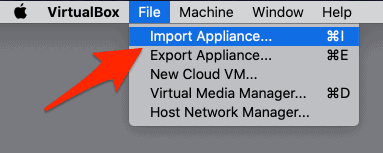
- Launch VirtualBox and select File and then Import Appliance…
- Navigate to the Bitnami .ova file that you downloaded back in step #3. Select that file and then click the Open button.
- Back on the Appliance to import screen, click the Continue button.
- Click the Import button on the Appliance settings screen.
- Wait a few moments for the import to finish.
- Now you’ll be taken back to the main VirtualBox window. Select your newly added bitnami-wordpress entry from the list in the left column of the window, and then click the Start button.
- Your virtual device will start up for the first time.
- You’ll be presented with a screen that says to wait a few minutes – so do exactly that, just wait a few minutes. It may seem like nothing is happening but your device is being setup in the background.
- Then screen will update and just as promised, you’re now able to view your login credentials etc. Even better – you’re done setting up VirtualBox. Yep, it was that easy. On this screen you’ll find a URL – likely something along the lines of http://192.168.x.x – enter that URL into a web browser on your Mac or PC.
- Ta-da, there’s WordPress! You now have WordPress up and running inside of a virtual machine on your computer. You can interact with WordPress exactly as if it were being hosted on a server somewhere else on the Internet. For example, add /wp-admin/ to the end of the URL you were provided in the previous step.
- Enter the username and password that were also provided back in step #13 to sign into your new install of WordPress on your Mac or Windows PC.
- At this point you can run updates, install themes and plugins – everything you’d be able to do with a “normal” WordPress installation. A good starting point might be to take a look at 7 “Must-Have” plugins for WordPress.
- When you’re done working in WordPress, close the VirtualBox machine. When you want to work in WordPress again, just launch VirtualBox and start the bitnami-wordpress entry again. That’s all there is to it.



As a Writer, i want to start my personal Blog on WordPress so this blog is very informative and useful source for me. I read this blog and i will surely apply this methods on my PC. Thanks for sharing this great stuff!