This guide will show you how to remap any of the keys on your Mac keyboard using a free and open source app for macOS.
Karabiner-Elements is a “powerful and stable keyboard customizer for macOS”. It lets you remap keys (change keys to other keys) and more advanced things like changing the caps lock key to control+option+command. Check out the full list of features here. You’ll need to be using macOS 11.0 (Big Sur) or 10.15 (Catalina) to use Karabiner-Elements.
This guide will show you how to install Karabiner-Elements and remap keys on your Mac keyboard.
- Download the .dmg from the Karabiner-elements home page. Open it up and run the installer file, Karabiner-Elements.pkg. Once the installation has completed, run Karabiner-Elements.app from your Applications folder.
- The first time you run Karabiner-Elements you’ll have to grant it a bunch of permissions, but this is a one-time only thing. Click the Open Security Preferences button when macOS tells you a System Extension has been blocked.
- Click the ‘lock’ icon in the bottom left corner of the window and enter your password when prompted. Then click the Allow button next to the message System software from application “.Karabiner-VirtualHIDDevice-Manager.app” was blocked from loading.
- Next you’ll be presented with a Input Monitoring Permissions Alert window – click the Open Security & Privacy System Preferences button.
- If the ‘lock’ icon is locked again, click it and enter your password. Then place a check in the box labeled karabiner_observer (it may be karabiner-grabber, see next step).
- You’ll be prompted to repeat the above two steps with karabiner-grabber as well, unless that was the one you did first – in which case you’ll need to place a check next to karabiner_observer this time.
- With all of that out of the way, you should now be at the Keyboard Setup Assistant screen. Click the Continue button.


- In order for the app to determine which keyboard layout it’s working with, you’ll need to tap a couple of keys. The first one is the key directly to the right of the Shift key on the left side of your keyboard. On a standard ANSI keyboard (US, Canada & others) that’s the z key.
- The next key you’ll need to tap is the one directly to the left of the Shift key on the right side of your keyboard. On a standard ANSI keyboard (US, Canada & others) that’s the ? (or / ) key.
- Once Karabiner-Elements has determined which keyboard you have, click the Done button.
- Now the main Karabiner-Elements window will appear – this is where you’ll configure your keyboard mappings. Let’s remap a key (you can always delete it later). Start by selecting the Simple modifications tab and then click the Add item button.
- Pull-down menus will appear in the From key and To key columns. Click the one in the From key column.
- A big list of all the keys on your keyboard will pop up. Select the key that you want to change the behaviour of.
- For this example I’m going to change my Right Shift key to a return key – because I often accidentally tap it instead of the return key, and I never use it otherwise.
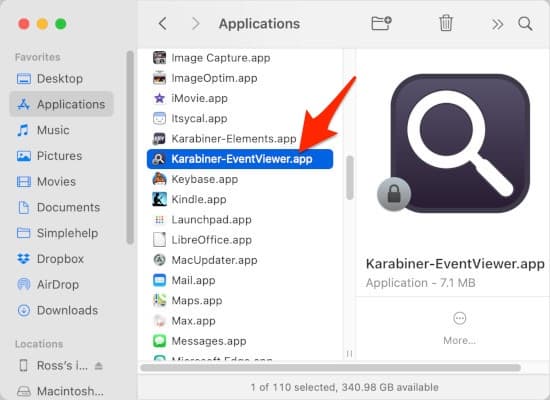
- You can test out the changes you make by going back to your Applications folder and launching Karabiner-EventViewer.app from there.
- You’ll need to grant it permission to receive keystrokes, so click the Open System Preferences button and do so.
- Once you give it permission you’ll need to restart it, so click the Quit & Reopen button.
- Click inside of the Text input test field box and test out your newly remapped key.
- Now you know how to remap keys on your Mac’s keyboard! For more advanced options, be sure to check out their documentation. And last but not least, if you find this software really helpful, considering supporting Karabiner-Elements by making a donation.