This tutorial will walk you every step of the way through the process of taking screenshots of your Android phone.
- Start out by downloading and installing the drivers for your Android phone.
- On your Android phone, select Settings.

- Then select Applications -> Development -> and enable USB debugging by placing a check in the box next to it.
- Now you’ll need to download the Android SDK from http://code.google.com/android/download.html. Select the Windows version, and save the file. It’s not a huge file, but it’s not small either. Depending on your Internet connection speed, it might take a while to download.
- Once the download has completed, unzip the file to somewhere on your hard drive that you’ll remember. Your C:\Program Files\ folder is one good place, but anywhere will do.
- Now you’ll need to download the JDK (Java Developers Kit) from http://java.sun.com/javase/downloads/. Don’t be confused by the number of different files that are available to download on that page – the one you’ll need is Java SE Development Kit (JDK). Again, the download can take a while.
- Once completed, run the JDK installation. Click Next all the way through until you’re done (the installation is very straight forward).
- Now plug in your Android Phone, if it isn’t already.
- Locate the folder you unzipped the Android SDK in (step #5 above), open the Tools folder and double-click ddms.bat (it might be titled just ddms if you don’t show extensions).
- The first time (but not subsequent times) you open the Android SDK DDMS, you’ll be prompted with a window (see screenshot below) asking if you’re willing to send usage statistics to Google. Review the Google Privacy Policy if you’re unsure if you want to enable or disable this feature. Click the Proceed button to finish opening DDMS.
- The Dalvik Debug Monitor will open. Make sure your device is listed in the upper-left window, and select it by clicking on it once.
- To take a screenshot, select Device > Screen capture …
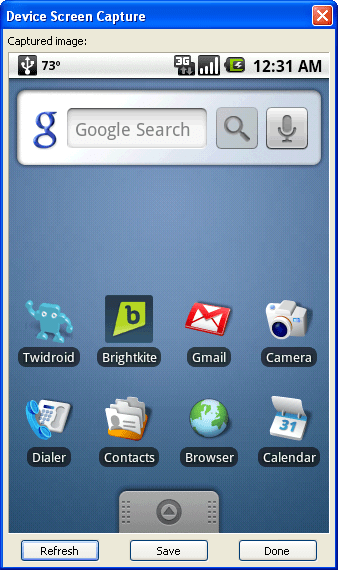
- The Device Screen Capture window will open, and display whatever is being displayed on your Android phone.
- On your phone, navigate to the screen you want to capture.
- Back in the Device Screen Capture window, click the Refresh button.
- The screen you want to capture (again, the one you navigated to on your Android phone) should appear. Click the Save button.
- Choose a name for your screenshot, then select a location to save the file. Click the Save button.
- Repeat steps 14 – 17 to take more screenshots.
- That’s it!





I have tried this and after step 9, I click on the ddms and a black screen pops up for just a sec and closes. I don’t know what I did wrong
after step 9, I click on the ddms and a black screen pops up for just a sec and closes. so pls suggest me wat should i do in this case
Vista will not allow me to change the driver for my phone. It automatically detected it as a USB device and apparently it thinks that’s what’s best for it, no matter how hard I try to change/update it. I think that is what’s preventing me from being about to do anything.
This should really be easier. All I want is a stupid screenshot. On the Pre, you press one maybe two buttons!
Is there any standalone executables for the Windows XP environment except installing the Android SDK, for taking the snap shots.
Thanks! Work perfect!
worked for me, windows and ubuntu 10
if people are having issues opening the ddms.bat you must download both java JDK and JDE.
This needs you to use the syncing with PC and enable debugging mode.Else you will keep getting the blank screen. Works perfectly for me.
I get as far as step 10, but no device is listed on the Dalvik Debug Monitor using my HTC Desire. How do i add my phone to the monitor?
when i click ddms, all that happens is the command prompt pops up for a split second, and nothing else. HELP!
its not seeing my phone!
I also had the problem of not seeing my phone (Droid) in ddms, but installing the driver for x64 resolved it. I’m using Windows 7 x64 Home Premium.
http://developer.motorola.com/docstools/USB_Drivers/Handset_USB_Driver_64/
Your way works!!! Thank you so much!! I really appreciate it. It’s the simplest and easiest instructions!
People who are facing problem in running ddms need to add the sdk path to your PATH system environment variable.
\tools
\platform-tools
People who are facing problem in running ddms need to add the sdk path to your PATH system environment variable.
\tools
\platform-tools
Could you tell me exactly whatt that means? Just get a black screen pop up for a second and then nothing.
Cheers
I was having problems as DDMS was showing the error message: “Failed to get the adb version: Cannot run program “adb”: CreateProcess error=2, The system cannot find the file specified.” Your reply helped me solve it.
For those who don’t understand, open up your System properties (right-click on Computer > select Properties > click Advanced System Settings). Click on Environment Variables. Under the System variables section, find the variable called Path. Double-click on it to edit it.
WARNING: Be careful to not change the variable name or delete the variable value. If you accidentally do anything harmful, click the Cancel button and start again. Deleting the value of the Path variable can seriously damage your system. Proceed carefully.
Press the End key on your keyboard while the text cursor’s focus is in the Variable value box. If your Android SDK is stored in the folder “C:\android-sdk-windows” add the following text. If your SDK is stored in a different folder, change the text accordingly and add it.
;C:\android-sdk-windows\tools;C:\android-sdk-windows\platform-tools
Take note that you must start with a semicolon as shown below to separate the new entries from the rest of the Path variable value. Also, make sure that the above paths actually do exist in your SDK folder. If they don’t, you’re probably doing something wrong.
Click OK to everything once you’re done. Then you can run DDMS again, and you should see your phone listed.
Additional Tip: It’s best to extract the Android SDK to a folder in the root of the drive, such as “C:\android-sdk-windows”. Extracting it to a folder deep inside your hard-drive (such as your Documents or Downloads folder) can cause the SDK to not function properly.
I hope the author of this great article will consider including the above information in it.
The author is grateful for your research and is indeed going to update this tutorial (and do new screenshots and a bit of a re-write) when he gets back from vacation
Thank you so much ADTC, I will be absolutely certain to credit you for your work.
Running Windows 7 64, followed instructions but when running ddms batch file I get this error message:
01:28:37 E/adb: Failed to get the adb version: Cannot run program “C:\ANDROI~2\tools\adb”: CreateProcess error=2, The system cannot find the file specified
Any idea what is wrong or what I can do to fix this. I have a Dell Streak, android v2.2.1
Never mind… figured it out…. here is another step to include in the instructions for everyone:
When you copy the “android-sdk-windows” to the recommended root of your C:\ drive the “\platform-tools” directory is not installed, (at least it didn’t install for me with the original pkg) but I did find a small text note in the C:\android-sdk-windows\tools directory named: “adb_has_moved” which is part of my error that I was getting. It says:
The adb tool has moved to platform-tools/
If you don’t see this directory in your SDK, launch the SDK and AVD Manager (execute the android tool) and install “Android SDK Platform-tools” Please also update your PATH environment variable to include the platform-tools/ directory, so you can execute adb from any location.
So I ran the SDK manager (in the root of C:\android-sdk-windows directory) and installed the platform-tools pkg.
Window popped up asking if I wanted to restart the adb server, so I said yes, then ran the ddms batch program and it worked great, got my screen shots in perfectly.
Side Note: I originally was using a app (Screen Shot It) to do this but it was leaving a nasty red filter colour overlay over all my screen captures which ended up with a washed out red image hard to view.
Thanks for this resource, and happy it works well!
thanks a lot! it works like a charm!
Ok, the developer went to bat for me with the program Screen Shot app and made an update two days later for not only me but anyone else having the same problem as I was having (see my comment above) and now it works great. Even more convenient then doing through your PC…. now that it works
Thanks
They really need to make an easier way to do this – like in an app!
Thanks….It helped me to do many other things on my mobile…:)
But to just capture screen shot…one can avoid all this. Every phone has a short cut assigned to capture screenshot. For Galaxy series (Mine is ACE), one need to hold bottom-right (back-key) and press home key (the middle one)…that’s it…Check ur sdcard to see the image. Or one can search for applications to capture screens.
@ Aerowild –
Sadly, not true. Some phones have a built in keyboard and/or key-combo that allow them to take screenshots. Most do not.
Tested on mac and working perfect
Xperia 10 Mini & Snow Leopard.
Thanks!
Helped a lot…Thanks!
Worked on my Samsung Captivate
Thanks
Yohhhhhhhhhhoooo
very happy today.
Yes after a long fight for 3/4 mths i really found one article that says properly how to take screenshots from an android phone. a big big thank you