This short guide will show you how to read “QR Codes” using the camera on your Android phone or tablet.
QR (“Quick Response”) codes are two-dimensional bar codes that you might have noticed on web sites, in magazines, or on products when you go shopping. They allow you to quickly scan them with your camera and your device will open a web site, show product info, display plain text and all sorts of other things. This tutorial will show you how to read and use them with your Android device. We have a guide that explains QR codes in a bit more detail if you’d like.
Depending on the version of Android your phone or tablet is using, you may already have a QR code reader built right into the camera app. The easiest way is to simply open the camera app and point it at this QR code:

If it opened a link to this web site – that’s it! You’re done. You don’t need to install anything or do anything else – just point your camera at QR codes and have fun!
If nothing happened when you pointed your camera at the QR code, that means you’re going to need to install a QR reader Android app. Here’s how –
- There are plenty of QR code reader apps to choose from, but I’d suggest the descriptively named QR Code Reader and Scanner: App for Android. It’s free, it’s from a trusted company, and it works well. Head over to it’s home on Google Play and install it from there.
- Once it’s installed, tap the QR Scanner icon on your Android home screen or app menu.
- Scroll up a bit and point your camera at the QR code you tried to scan a couple of minutes ago.
- This time it will open the website www.simplehelp.net in a window within the QR Scanner app. Tap the “3 dots” icon (see screenshot below) found in the upper-right corner of the app.
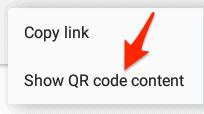
- From here you can copy the link to simplehelp.net to paste into a browser, email app etc. Or you can select Show QR code content (do so now) …
- and a small window will pop up with the contents of the QR code – which in this case is a web site address.
- If the QR code were to contain a vCard, the contents of that card is displayed when that code is scanned. With the QR Scanner app there will be a button that lets you import that contact directly into your address book.
- If you want to get started creating some of your own QR codes, Beaconstac’s QR Code generator is as good a place to create a code as any. There are dozens of other completely free QR code generators if it’s not to your liking.