This tutorial will guide you through the steps required to copy and convert a DVD to play on your iPhone, iPad or iPod Touch, using your Mac.

- Get started by downloading and installing HandBrake for macOS. The installation is typical for macOS – just open the downloaded file and then drag HandBrake.app to your Applications folder. Launch it from there.
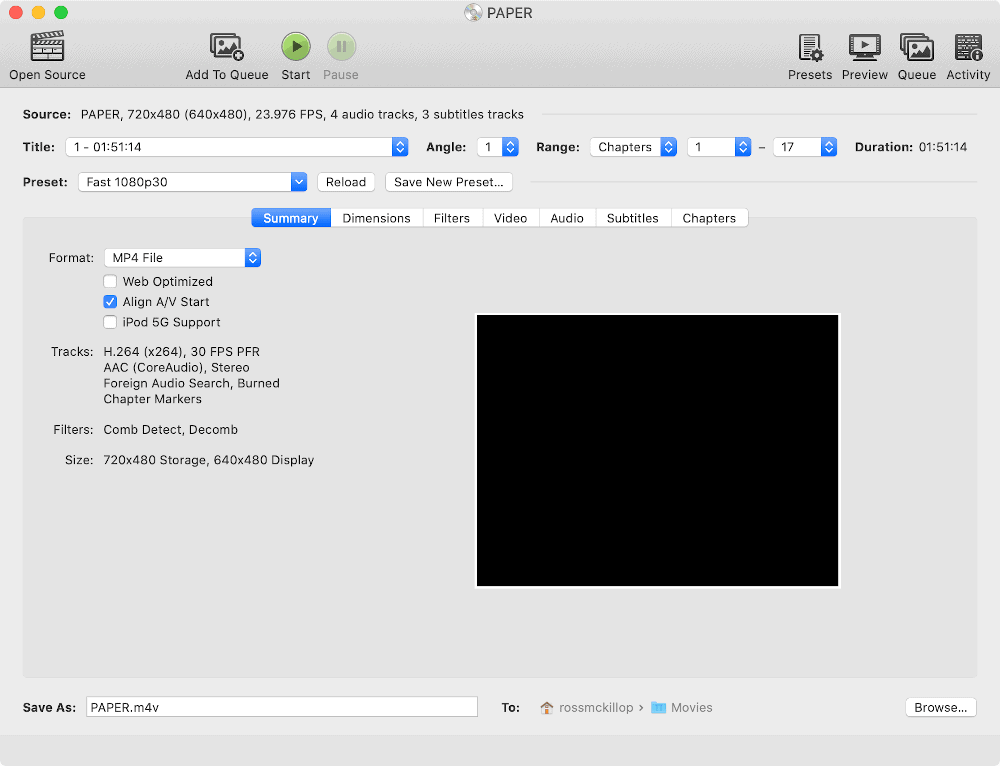
- Make sure the DVD you want to copy to your iPhone or iPad is inserted in your Macs DVD drive. When HandBrake opens, it will prompt you to select your source – which in this case is the DVD. Select it and then click Open.
- You may be prompted with a message about how Copy-protected sources. Ignore it and click the Attempt Scan Anyway button.
- HandBrake will now read your DVD and make some educated guesses about which part of it you want to copy. For example, the DVD may have ‘special features’, an audio commentary track etc. HandBrake will look for what it believes to be the ‘main’ part of the DVD – the movie itself. Once that’s done, click the Presents button located towards the upper-right corner of the window.
- Select Devices from the list to expand its menu. From here you can select from a bunch of pre-created presets that will determine the format, quality and size of your movie file. You may need to go through some trial-and-error to determine the best result for you. Some good starting places are Apple 720p30 Surround for a file that will be viewed on an iPhone, or Apple 1080p60 Surround for a file that’ll be viewed on an iPad.
- By default, Handbrake will save the movie file to your Movies folder – if you’d like to change that, click the Browse… button and select a different location.
- It’s time to encode! Click the Start button.
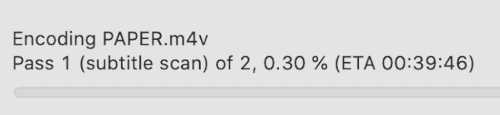
- At this point you may want to go grab a cup of coffee or tea. The encoding process can take quite some time – it depends on how long the movie is, the format you opted to encode it in, and the overall speed of your Mac.
- You’ll be notified once the encoding has completed.
- Open a Finder window and navigate to your Movies folder (or the folder you opted to save the file in) – ta-da! There’s your newly created DVD movie file, ready to copy from your Mac to your iPhone or iPad. That’s it – you’re all done.