How to share files and folders in Ubuntu

by Ross McKillop on May 19, 2007

Linux

This brief tutorial will outline how to enable file sharing in Ubuntu.

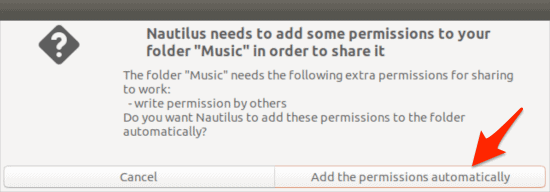
  1. Sharing files and folders across your network from your Ubuntu PC is every bit as easy as sharing files in Windows (arguably, it’s easier). Start by right-clicking the folder you want to share, and select Share Folder. If the services required to share files/folders aren’t installed, you’ll be prompted to install them.
  2. After clicking Install services they will automatically start to download and install.
  3. Once that has completed you’ll be presented with an options window. From here you can select the type of sharing (SMB or NFS), give the shared folder a name and decide if you want read-only access to the folder. Click OK when you’re done.
  4. If you right-click on your newly shared folder and select Properties and then the Emblems tab, you can give the folder a unique icon so you’ll know it’s shared.

  5. click to enlarge

  6. You can further modify the permissions of your shared folder by selecting the Permissions tab.

  7. click to enlarge

  8. Now open a terminal in Ubuntu and enter the command:

    sudo smbpasswd -a username

    This will add a SMB user.

  9. And now other computers can connect to your shared folder!
Related Posts:
  • How to share files and folders between Windows and OS X using Parallels
  • How to install Ubuntu 7.04 using VMWare Fusion in OS X
  • How to make all of your folders have the same “View” in Windows XP
  • Linux for Parents - A Beginners Guide to Ubuntu
  • How to automatically sign in to Ubuntu
  • Get Simple Help tutorials just like this one in your email inbox every day - for free! Just enter your email address below:


    You can always opt out of this email subscription at any time.


    Bookmark and Share

    { 3 trackbacks }

    How To Share Files And Folders In Ubuntu [Linkosphere]
    06.16.07 at 7:54 am
    ColdFusion 8 on Ubuntu with LAMP « Random Madness
    02.11.08 at 2:07 pm
    how to make a network - FreddysHouse
    05.22.08 at 1:57 am

    { 31 comments… read them below or add one }

    1 Ferdinand 05.20.07 at 7:32 am

    And when it asks you for the username and password? Do you give the username and password of the linux account?

    2 Ross McKillop 05.20.07 at 2:19 pm

    Ferdinand,

    Yes - sorry I should have included that - will update shortly.

    3 Sven 05.23.07 at 4:05 am

    I have Ubuntu 7.04 running in Parallels Desktop. Will it possible to access a shared folder from Mac OS X running on the same machine. I tried it but it didn’t work.

    4 Aamir 06.04.07 at 4:31 pm

    I tried this, and cannot log in (from my windows machine) via my ubuntu username. (which is “aamir”). I can see the PC in “My Network Places”.

    Please assist!

    5 Brian 06.06.07 at 10:02 am

    I tried the same approach as the one listed here but, under OS X (10.3.9), after I enter the Ubuntu admin username and password I get an error which says Can not connect as the username or password is incorrect.

    I have attempted to connect from Ubuntu to the mac and that way works but not from the mac to Ubuntu. Any ideas?

    6 soup 06.12.07 at 10:23 am

    To connect to your shared Linux folder on a Windows machine, enter sudo smbpasswd -a (username) in terminal and set your SMB password.

    7 Tuomas 06.20.07 at 3:37 am

    Hi

    It seems that you also need to add a samba user :

    sudo smbpasswd -a usernamen

    After that started to work with my installation

    8 utunbu 06.28.07 at 1:58 pm

    Please include that we also need to add the user as a samba user using the command into the main article… I thought I had done something wrong until I scrolled down to see the comments

    Thanks for the article.

    9 Lee Farris 07.08.07 at 10:29 am

    Excellent support article here. I have only been using Ubunta for couple of days and I love it. My feelings for Windows XP and Vista are moving more and more towards Ubunta.

    Thank you for your help.

    Lee Farris

    10 John 08.01.07 at 7:54 pm

    yeah… another one that was stumped until the comments about adding the samba password…

    now it works great!

    11 Peter 09.21.07 at 10:46 pm

    Great article, although you’re missing half the equation. You need to add a user as several people have mentioned before you’re tutorial can work. (and a possible samba restart? - I just did it just in case)

    sudo /etc/init.d/samba restart

    12 Ross McKillop 09.21.07 at 10:56 pm

    Peter - yeah I really do have to update this. The samba user step I forgot as it had already been created. Thanks!

    13 descent 10.20.07 at 4:13 am

    And what should i do if i want Windows users to connect to my shared files without entering any password?

    14 Donald 11.08.07 at 5:20 am

    Thanks for the guide- I’ve been trying to work out if it is possible to share files in Ubuntu all morning and finally found this page.

    I right clicked on a file on this computer and installed both services, then chose SMB because NFS asked me about IP addresses, network name which I don’t know off hand.

    My other computer asked me for a password for MSHOME but did not recognise my Ubuntu password.

    Tried sudo smbpasswd -a usernamen as above with no success.

    Then went through the same process on my other computer and found I could access the shared folder with no problem from this computer.

    I checked permissions/folder access on the shared folders on both computers and found one set to ‘access files’ and the other to ‘none’. (These were the default settings- don’t know why they were different.)

    I was then able to see the shared folder on the other computer without being asked for a password.

    Under what circumstances is it necessary to set up a samba password?

    I think file sharing in both directions is working now, even though I haven’t gone through the password process on this computer.

    If possible could you include an idiots guide as to the relative merits of SMB and NFS (and indeed, what they are).

    Is there any reason to use NFS when SMB seems to be far easier to set up?

    Again, many thanks!

    15 salvatore 11.11.07 at 6:35 pm

    While I should have known better, the ’smbpasswd’ step had me stumped. Thanks for the kick in the right direction.

    16 chris 11.12.07 at 10:14 am

    how do you connect to your shared folder ?

    17 Kenster 11.14.07 at 5:06 pm

    How do you setup a shared folder that allows anonomous windows users. I would like to create an “In Box” folder and share it to my entire network so users can grab files from it or place files in it.

    In a network of hundreds of users putting a username and password for each user will not work.

    18 ln 11.18.07 at 1:50 am

    same here:

    sudo smbpasswd -a usernamen

    fixed it for me, wasted a couple of hours today trying to get it working

    thanks!

    19 reincarnut 11.28.07 at 9:11 am

    gosh, i went through the smbpasswd thingy too.

    and as a newbie, it took me 3 days befor i found this page… dang!

    thanks a ton, soup on Jun 12, 2007

    :-)

    20 benhur 03.25.08 at 8:14 pm

    thanks a lot! this worked for me!

    21 peter 06.11.08 at 11:39 pm

    when i try to let ubuntu install the services for the first time, i get no choice regarding the protocols. hardy just installs samba, but not nfs…what’s wrong here?

    22 James 06.12.08 at 3:29 pm

    I’m running two computers with Ubuntu and I tried all of this and I still don’t see anything when I go to Places–> Network. Do I need to change settings on my router?

    23 stanley82 06.21.08 at 7:31 am

    Well hardy heron ubuntu I did most of the above including the smbpasswd stuff. The process was similar but not exact. On my simple Xubuntu machine sharing right click sharing is not an option. On win98 net neighbourhood there is no singn of Ubuntu. Any suggestions? Ian

    24 Matt 06.21.08 at 10:37 pm

    I get

    ‘net usershare’ returned error 255: net usershare: cannot open usershare directory /var/lib/samba/usershares. Error Permission denied
    You do not have permission to create a usershare. Ask your administrator to grant you permissions to create a share.

    When I try to share the folder.

    Thanks

    25 me too 06.29.08 at 4:58 pm

    I also get the error,
    “net usrshare returned error 255″ when I try to create a shared folder in ubuntu Hardy heron.

    26 corq 07.08.08 at 12:51 pm

    Thanks!!! I have one lonely *nix machine on a windows domain - I appreciated this.

    27 Glenn 07.08.08 at 11:42 pm

    Something is missing from the instructions. Here is what I get:

    ‘net usershare’ returned error 255: net usershare: cannot open usershare directory /var/lib/samba/usershares. Error Permission denied
    You do not have permission to create a usershare. Ask your administrator to grant you permissions to create a share.

    28 Brad 07.18.08 at 6:00 pm

    I am also installing on hardy and running into this problem:

    ‘net usershare’ returned error 255: net usershare: cannot open usershare directory /var/lib/samba/usershares. Error Permission denied
    You do not have permission to create a usershare. Ask your administrator to grant you permissions to create a share.

    any ideas there?

    29 Brad 07.18.08 at 6:19 pm

    ok here is the hardy fix:

    I selected to install samba (file server) when i installed hardy server edition-this is ok.

    when i got the desktop installed i tried to right click in nautilus (file explorer) and share the file and I got the previous error (net usershare 255).

    to fix it i went to system ->administration -> users and groups. then unlock (enter password) then manage groups. choose sambashare then properties. select your name hit ok, close, close.

    Then logout and log back in and then right click and try to share the directory.

    For some reason in hardy samba doesn’t add you to the sambashare group.

    30 Adriaan 08.16.08 at 3:16 am

    I didn’t do any of that sambashare stuff! I just followed what Brad said and it worked for me.

    “to fix it i went to system ->administration -> users and groups. then unlock (enter password) then manage groups. choose sambashare then properties. select your name hit ok, close, close.

    Then logout and log back in and then right click and try to share the directory. ”

    Thanks for the help. When I tried the first fix in the command line thing, it always said cannot modify password, so I gave up and tried Brad’s sollution, and voila, it worked!

    31 ringi 09.04.08 at 6:49 pm

    Great howto THX

    Leave a Comment

    You can use these HTML tags and attributes: <a href="" title=""> <abbr title=""> <acronym title=""> <b> <blockquote cite=""> <cite> <code> <del datetime=""> <em> <i> <q cite=""> <strike> <strong>