This guide will take you each step of the way through setting up and configuring a VPN on your Windows 10 PC/laptop/tablet.
If you don’t have a VPN service yet, or you’re unhappy with your current one, I strongly recommend and endorse the VPN service provided by Private Internet Access, which works seamlessly with Windows 10.
Windows 10 supports several VPN protocols “out of the box” (no additional software is needed). Those protocols include PPTP and L2TP/IPSec – two of the most common VPN types. It doesn’t matter if you have no idea what any of that means, just make sure your VPN service supports one of those two (Private Internet Access supports both).
Let’s get started!
- Click the Windows 10 “Start Button” and select Settings
- Click the Network & Internet entry.
- From the column on the left side of the screen, select VPN
- On the right side of the screen, click Add a VPN connection
- Now it’s time to configure your VPN. Start out by selecting Windows (built-in) from the VPN provider pull-down menu. Then enter a name in the Connection name field. It doesn’t matter what you call it, but something descriptive is always best. Next, enter your VPN server address in the Server name or address field. Click on the VPN type pull-down menu…
- and select your type of VPN connection. For the sake of this tutorial we’re going to use Point to Point Tunneling Protocol (PPTP), but the steps for Layer 2 Tunneling Protocol with IPSec (L2TP/IPSec) are very similar, and you should have no trouble following along.
- For the Type of sign-in info select User name and password. The User name and Password fields are actually optional. This means each time you connect to your VPN service, you’ll be prompted to enter your username and password instead of having that information saved. Similarly to how you have your home WiFi set up, your probably don’t have to enter your password every time you connect to it. One “meet in the middle” solution for your VPN is to enter your user name, but not password. That way you’ll always be prompted for your password, but not your user name (which can often be a series of random numbers and letters). There is no “wrong” decision, it’s a matter of just how secure you want your overall system to be.
- When you’ve entered all of the info (or left blank in the case of the optional fields), click the Save button.
- Now you’ll see your newly created VPN connection listed in the VPN section. Click it.
- Time to test the new connection! Click the Connect button.
- If you opted not have to have Windows remember your user and/or pass, you’ll be prompted to enter them. After a few moments, the status will change to Connected.
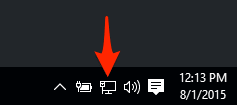
- To quickly monitor your VPN connection status, click on the Networking icon in your Windows System Tray.
- At the top of the menu, you’ll see your VPN connection status listed with your Internet connection status. You can also disconnect to your VPN from here, just click on the entry…
- and you’ll be taken right back to the VPN section. Click the Disconnect button when you don’t want to use your VPN.
- That’s it!