Skip to content


How to install Vista in OS X using Parallels – a complete walkthrough

Mac Windows

Similar to How to install Ubuntu in OS X using Parallels – a complete walkthrough, this tutorial will take you every single step of the way through installing Windows Vista using Parallels for OS X.

The steps and screenshots used for this tutorial are specific to Parallels Desktop 3.0 (build 1970) running on a MacBook Pro w/ OS X (10.4.8). With that said, they will be nearly identical if you have a Mac Pro, Mac Mini, MacBook or any other Intel based Apple Mac. Note that Parallels Desktop 3.0 is the current version.

some additional info: As a friendly digger points out, you won’t be able to run Aero (the fancy graphics stuff in Vista) no matter how great your Mac video card is. VMWare is more likely to be the first allowing 3D in a virtual OS.

  1. Setting Up Parallels for Vista
  2. Installing Windows Vista
  3. Installing Parallels Tools

Setting Up Parallels for Vista

  1. If this is the first time you’re using Parallels, the Wizard will launch automatically. If it’s not the first time you’ve used Parallels, launch the Wizard by selecting Install OS

  2. click to enlarge

  3. Click Next after reviewing the first screen

  4. click to enlarge

  5. Select Custom OS installation and then click Next

  6. click to enlarge

  7. Select Windows as the Guest OS Type and Windows Vista as the Guest OS Version. Click Next to continue

  8. click to enlarge

  9. Here you’ll need to select the amount of RAM that will be dedicated to the guest operating system (Vista). I wouldn’t suggest trying to run Vista without allocating at least 512MB of RAM, ideally more. Because I have 2GB in my MacBook Pro, I’ve opted to dedicate half of it (1GB) to Vista. After you’ve selected an amount of memory click Next to continue.

  10. click to enlarge

  11. Select Create a new virtual hard disk and then click Next

  12. click to enlarge

  13. Now you’ll need to set the size of the “hard drive” that Vista will use. Because I don’t plan on installing a lot of software, I’ve left the default of 16,000MB (about 16GB). After Vista has finished installing, I’ll be left with about 13GB of free space – which is plenty to install things like Office, Firefox etc.

    Review the differences between Expanding and Plain as a disk format. Parallels suggests using Expanding, and since I’ve only noticed a small difference in performance between the two, I would suggest it as well. Either way, don’t stress out over this decision too much – you can convert from one format to the other, using Parallels Image Tool, if you ever need to. Click Next when you’re ready to continue.


  14. click to enlarge

  15. Choose a location to store the hard disk image file (the default is fine). Click Next to continue.

  16. click to enlarge

  17. Click Yes to confirm.

  18. click to enlarge

  19. Select Bridged Ethernet and then click Next

  20. click to enlarge

  21. Now you’ll need to select (if you have more than one) which of the adapters will provide Vista with its network (Internet) connection. If you use AirPort to connect your Mac to the Internet, select it. If you use an Ethernet Adapter, select it. Both Wireless and Ethernet (cable) will work, just be sure to select the one you use to connect to the Internet. Don’t leave Default Adapter selected, but do leave Connect cable at startup checked (yes, even if you’re using Airport).

    note: if you sometimes use Ethernet, but right now you’re using Airport, choose Airport. You can always switch the “Internet source” later.


  22. click to enlarge

  23. Give your Virtual Machine a name (it doesn’t matter what) and then click Next. Almost done.

  24. click to enlarge

  25. If you’re installing Vista from a DVD insert it now (if it isn’t already in your DVD drive), leave Start guest OS installation checked, and skip down to Installing Windows Vista.

    If you’re installing Vista from an .iso file, remove the check from Start guest OS installation, click Finish and continue on with step 14.


  26. click to enlarge

  27. Back at your Parallels configuration screen for Vista, click on the CD/DVD-ROM entry in the Resources table.

  28. click to enlarge

  29. Make sure that Use image file is selected, and then click the button to navigate to your Vista image (.iso). Click OK when you’re done.

  30. click to enlarge

  31. Back at your Parallels configuration screen, click the Save button to save your changes, and then click the green Power On button from the right sidebar.

  32. click to enlarge


Installing Windows Vista

  1. Choose Custom Windows Vista installation and click Next to begin.

  2. click to enlarge

  3. Click Finish (by the way, if you’re booting from an .iso don’t worry about the message re: putting the Vista DVD into your drive)

  4. click to enlarge

  5. Boring.

  6. click to enlarge

  7. Select your language, time and currency format and keyboard type. Don’t be at all surprised if you experience a weird “dual mouse cursors” issue (two cursors on the screen but only one actually works) – this will be fixed later by installing Parallels Tools.

  8. click to enlarge

  9. Click Install now

  10. click to enlarge

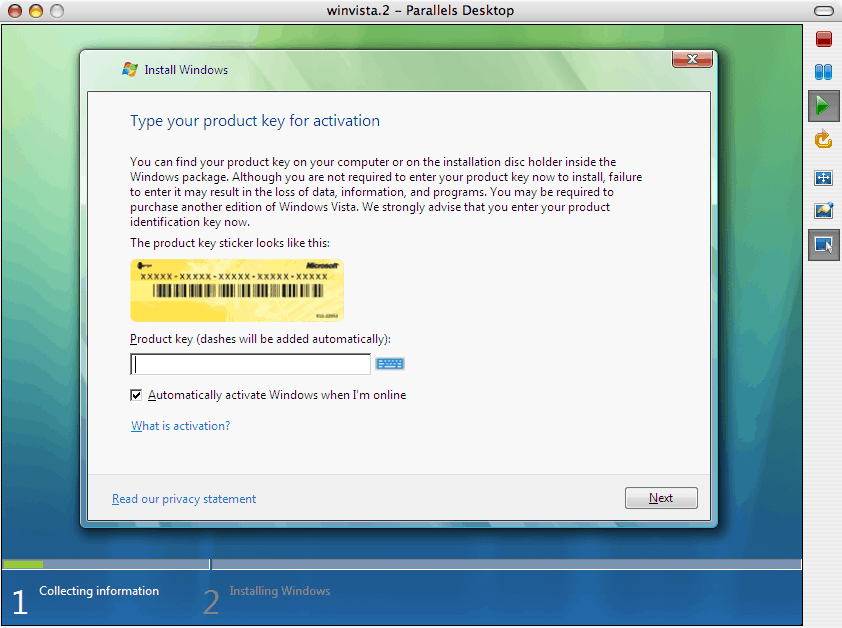
  11. Enter your Vista serial number. Or don’t – you can do this later.

  12. click to enlarge

  13. Accept the agreement and click Next

  14. click to enlarge

  15. You probably won’t have any choice – so select Custom

  16. click to enlarge

  17. Choose the Disk you’ll be installing Vista on and then click Next

  18. click to enlarge

  19. Go get a coffee.

  20. click to enlarge

  21. Eventually Vista restart itself. Just sit back and watch the fun.

  22. click to enlarge

  23. Still boring..

  24. click to enlarge

  25. Now’s a good time to go warm up that coffee..

  26. click to enlarge

  27. Almost done.

  28. click to enlarge

  29. Now choose a user name, password and picture/icon. Click Next when you’re done.

  30. click to enlarge

  31. Here you’ll choose a computer name. Sorry about the missing screenshot. Your computer name can be pretty much anything alpha-numeric and can include some ’special’ characters (like dashes). Click next to continue.
  32. Now you’ll need to choose how you want Vista to handle updates. Review your options and make the choice that’s appropriate for you.

  33. click to enlarge

  34. Select your Time zone, make sure the Time and Date are correctly set, and then click Next.

  35. click to enlarge

  36. You’re welcome. Click Start.

  37. click to enlarge

  38. This step (Windows performance check) can take a few minutes.

  39. click to enlarge

  40. Finally, enter the password that you set a few minutes ago.

  41. click to enlarge

  42. Almost there…

  43. click to enlarge

  44. Ta-da! It’s Vista!

  45. click to enlarge

  46. There’s a pretty good chance that you won’t be connected to the Internet. If you check the Windows Vista Device Manager, you’ll probably notice that your Ethernet card isn’t installed correctly. Don’t worry about it – Parallels Tools will fix your Ethernet card, end the double-cursor problem and more.

Installing Parallels Tools

  1. With Vista running (but not in full screen if you’ve been playing around a bit) use the ctrl-alt key combination to ‘escape’ from the virtual machine and return to OS X. From the Parallels menu, select VM and then Install Parallels Tools…
  2. Review and then click OK
  3. Back in Vista an AutoPlay window will appear. Click Run PTStart.exe
  4. Click Allow

  5. click to enlarge

  6. Wait, but don’t go too far –

  7. click to enlarge

  8. because you’ll have to choose Install this driver software anyway a number of times

  9. click to enlarge

  10. Again..

  11. click to enlarge

  12. and again.. and probably again

  13. click to enlarge

  14. Finally, restart Vista again by clicking Finish. When Vista boots back up again, you’ll notice that the mouse cursor is fixed (and you should be able to seamlessly move your cursor from Vista to OS X without having to do the ctrl-alt keyboard combo), your Ethernet card will be properly installed (which means you should be online), a new display driver will be installed allowing for more screen resolutions in Vista (though the fancy Aero parts of Vista won’t work, yet) and last but not least, you can share files between Vista and OS X.

  15. click to enlarge

Posted in Mac, Windows.

Get Simple Help tutorials just like this one in your email inbox every day - for free! Just enter your email address below:


You can always opt out of this email subscription at any time.

48 Responses

Stay in touch with the conversation, subscribe to the RSS feed for comments on this post.

  1. Daniel says

    Isn’t it against the Vista EULA to run anything other than Ultimate edition on a virtual machine?

  2. Cesar says

    Hello, I hace installed Vista over Parallels but I can’t change between OS like in this video:

    http://www.youtube.com/watch?v=Gre3lrD1LXQ&mode=related&search=

    Any body knows how can I do?

    Thanks

  3. mm says

    One of the easiest and best guides to complete the installation… Everyone should read this

  4. alex says

    it is a really good web site because it can download the full softweare for free!! and because it has so much detail

  5. austin says

    Excellent help. Thanks!

  6. Atirav says

    O.k.!!! i have a question.. i got UBUNTU on my laptop.. though i want to uninstall that and get only Vista… how do i do that… Please Mail me.. I got the vista C.D. though when i install it it says that there is NTFS Partition in the Disk Drive… and please remember also im just a rookie at computer.. so please mail me if you have a solution.. thank you..

  7. Damhan says

    Great introduction tutorial, much apreciated.

  8. jonathan says

    thank you very much for your help!
    Jonathan

  9. Eddie says

    Got an error message saying that my mac cannot run 64-bit system. I think the disc offers an option (according to the instructions) for 32 or 64-bit, but I cannot get to it in Parallels – any ideas?

  10. Alan says

    Thanks for the guide, big help

  11. Calliope says

    this was exactly the set of instructions that i needed to help me finish my vista install. thanks so much! your writing was very clear and the screen shots were perfect.

  12. Jim says

    Awesome, this could not have been easier thanks to your guide. Even with Parallels 3.0 and OSX 10.4.11, this was close enough I could make a couple of guesses and get through without any trouble. Strong work, thanks very much!

  13. TaDa says

    After long tries of Bootcamp with Vista Business 5 CD Version I capitulated and went for parallels. smooth and seamless installation, performance sufficient for my needs, but prob not for gamers. But then again, who buys a Mac for gaming… btw, the problem with Bootcamp is the lack of an eject disc function during installation, which means you MUST have a Vista DVD for installation. I tried pretty much every solution other than merging the 5 discs into one DVD (its painfully long and I anyway had no empty DVD here). Forget about the EjectCD.exe tools marketed online. Though they run on Vista machines, they havent done the trick during the Mac installation of Vista.

  14. James says

    Very good walk through. Thank you very much!!

  15. Jim says

    The beauty of parallels is it’s simplicity, this tutorial is the icing on the cake, and is much appreciated!! THANK YOU

  16. LGgeek says

    very well done tutorial, Thank You

  17. Alif says

    Thank you !!!!

  18. Umbee says

    thank u for the help! finally online after about 2 hours of hating everything microsoft.

  19. shyamaka says

    thank u for the help

  20. RAUL says

    Al terninar de instalar Paralles y comiezo a instalar Windows Vista pone una ventana
    (Unable to start the virtual machine.
    The virtual machine cannot be started because the hardware virtualization support is disable on your Mac.)
    No tengo idea de como activar o corregir este error Gracias.

Continuing the Discussion

  1. VMblog.com - Virtualization Information : HOW TO: Install Windows Vista in OS X Using Parallels linked to this post on February 11, 2007

    [...] HOW TO: Install Windows Vista in OS X Using Parallels Posted by David Marshall on Saturday, February 10, 2007 6:24 AM If you’ve seen the How To Install Ubuntu Guide for Parallels, this tutorial is very similar.  It offers a complete walk-through guide, taking you every step of the way through installing Windows Vista using Parallels Desktop for Mac.  Screenshots may vary, as this walk-through guide uses build 1970.  The how to guide goes through Setting Up Parallels for Vista, Installing Vista, and Installing Parallels Tools. You can check out the walk-through guide, here. Posted by David Marshall on Saturday, February 10, 2007 6:24 AM Filed under Desktop Virtualization [...]

  2. Jay’s Headspace - » Eager Beaver - (hardly) Working harder than ever linked to this post on February 11, 2007

    [...] How to install Vista in OS X using Parallels – a complete walkthrough – Simplehelp [...]

  3. NotAfraidTech » Blog Archive » How to install Vista in OS X using Parallels - a complete walkthrough linked to this post on February 11, 2007

    [...] If your parents ask you to install Vista on their Mac, just send them here instead. This tutorial will take you every single step of the way through installing Windows Vista using Parallels for OS X.read more | digg story [...]

  4. Como instalar Vista en OS X utilizando Parallels | Blog Vecindad Gráfica Diseño Gráfico linked to this post on February 11, 2007

    [...] Una guía para los que desean arriesgarse a utilizar Vista con Parallels. How to install Vista in OS X using Parallels – a complete walkthrough [...]

  5. The Edge of I-Hacked » How to install Vista in OS X using Parallels - a complete walkthrough linked to this post on February 11, 2007

    [...] from Simplehelp Similar to How to install Ubuntu in OS X using Parallels – a complete walkthrough, this tutorial will take you every single step of the way through installing Windows Vista using Parallels for OS X. [...]

  6. Cartoons Fans Lounge linked to this post on February 11, 2007

    [...] more | digg story No Comments so far Leave a comment RSS feed for comments on this post. TrackBack URI Leave a comment Line and paragraph breaks automatic, e-mail address never displayed, HTMLallowed: <a href="" title=""> <abbr title=""> <acronym title=""> <b> <blockquote cite=""> <code> <em> <i> <strike> <strong> [...]

  7. How To Install Vista In OS X Using Parallels » Vista Fan Boy dot com - Blogging About Windows Vista linked to this post on February 11, 2007

    [...] Installing Windows Vista [...]

  8. Tribolum.com linked to this post on February 11, 2007

    How to install Vista in OS X using Parallels…

    For when the day arrives…….

  9. The After Mac » Windows Vista on Your Mac, A Step By Step linked to this post on February 11, 2007

    [...] If you’re a Mac user that needs to run or work with Vista as well, here’s a step by step tutorial on how to get it up and running via Parallels. The fancy graphics stuff of Vista a.k.a Aero, won’t work on Parallels but that’s just eye candy anyway.. They say it might be VMWare who will be the first to bring 3D Graphics to virtualization, so you probably need to wait for that if you want Aero. [...]

  10. Quickly :: Windows Vista on Macs at Mac Recon :: an operative mac blog linked to this post on February 12, 2007

    [...] Install Vista on Parallels. [...]

  11. meneame.net linked to this post on February 12, 2007

    Cómo instalar Vista en OS X usando Parallels…

    Este tutorial muestra cómo instalar Windows Vista en OS X paso a paso usando el programa Parallels, un gestor de máquinas virtuales. (en inglés)…

  12. « Kevin Hatfield’s Blog linked to this post on February 12, 2007

    [...] How to install Vista in OS X using Parallels – a complete walkthrough [...]

  13. Windows Vista en MacBoock OSX | aNieto2K linked to this post on February 12, 2007

    [...] Aprovechando la potencia de Parallels, y un manual de instalación de Windows Vista on Mac, he logrado instalarlo sin nigún problema. Ahora dispongo, gracias a Parallels, Windows XP, Ubuntu y Vista dentro del OSX. Realmente una maravilla. [...]

  14. Prime News Blog » Blog Archive » lynda carter fake wonder woman nude pictures How to install Vista in OS X using Parallels - a complete walkthrough linked to this post on February 12, 2007

    [...] lynda carter fake wonder woman nude pictures If your parents ask you to install Vista on their Mac, just send them here instead. This tutorial will take you every single step of the way through installing Windows Vista using Parallels for OS X. wonder woman fan fictionread more | digg story [...]

  15. TriedIT - Software and Hardware News and Reviews » Blog Archive » How to install Vista in OS X using Parallels or just run Windows on your Mac linked to this post on February 12, 2007

    [...] Ok, so… say your university’s online classes *cough* UMD *cough* doesn’t support OS X and you’re left wondering how exactly you should use that expensive MacBook Pro to take your online classes. Well, fear not, here’s a complete walk through on how to get Vista installed in OS X using Parallels. Of course, if you’re using Windows XP still, you can do the same thing using this site. And if you want to use the (currently free) VMware Fusion beta, as my review of Vista shows, it works well there. I really hate dual-booting, but using Apple’s Boot Camp, you can install Windows in a dual-boot configuration on your Intel-based Apple computer. Also, for the love of god, can people please stop coding to a single platform? Share and Enjoy: These icons link to social bookmarking sites where readers can share and discover new web pages. [...]

  16. links for 2007-02-12 // areyouageek (?) // areyouageek (?) //~ a geeks thoughts, rambles and rants ~ linked to this post on February 12, 2007

    [...] How to install Vista in OS X using Parallels – a complete walkthrough – Simplehelp (tags: how-to howto mac microsoft os osx pc windows vista install parallels) [...]

  17. SearchRoads » scooby doo flagpole sitta How to install Vista in OS X using Parallels - a complete walkthrough linked to this post on February 12, 2007

    [...] scooby doo flagpole sitta If your parents ask you to install Vista on their Mac, just send them here instead. This tutorial will take you every single step of the way through installing Windows Vista using Parallels for OS X. scooby doo figureread more | digg story [...]

  18. How to share files and folders between Windows and OS X using Parallels - Simplehelp linked to this post on February 14, 2007

    [...] The very first thing you need to do to (easily) share files and folders between Windows and OS X is install Parallels Tools. Though the instructions (from the previous link) are specific to Windows Vista, they’re very similar for XP. [...]

  19. Has Windows Vista Been Released? » Technology, Blogging and New Media linked to this post on February 14, 2007

    [...] Meanwhile, The After Mac provides points us to SimpleHelp where there is a walkthrough on for those folks who must install Vista on their Mac. One has to ask… Why? I have Parallels with Windows XP and the only thing I can see a purpose for using it for is IE7 development. That’s on XP. Regardless, I’m sure someone can use the info. [...]

  20. Deinterlaced linked to this post on February 16, 2007

    [...] Vista in OS X using Parallels – a complete walkthrough 2007-02-16 11:23 | Uncategorized | Permalink | Here’s a good walkthrough of installing Vista on a Intel Mac. read more | diggstory |  [...]

  21. What’s up with this guy and girl? » Blog Archive » What can’t my Mac do now? linked to this post on March 6, 2007

    [...] I’ve been hearing a lot about Parallels for Mac, which allows Mac users to run a Windows virtual machine. After reading this article on installing Vista with Parallels and the companion installing Ubuntu with Parallels, the Coherence feature and learning that the friendly folks at Parallels offer a 15 day free trial I gave it a try with Windows XP. This is my story, from a sort-of-techie-but-not-so-much-anymore point of view. I use Mac because ‘it just works’ but can get around Windows and Linux systems with some level of competence if that is any indication of my skill level. [...]

  22. Top 10: mis sitios favoritos de marzo « dot press linked to this post on March 30, 2007

    [...] How to install Vista and Ubuntu on OS X using Parallels [...]

  23. How to install PCLinuxOS 2007 using VMWare Fusion in OSX - a complete walkthrough - Simplehelp linked to this post on May 24, 2007

    [...] How to install Vista in OS X using Parallels – a complete walkthrough [...]

  24. How to install Vista in OS X using Parallels - a complete walkthrough « Apple Top News linked to this post on October 22, 2007

    [...] read more | digg story [...]

  25. WHERE CAN I FIND TUTORIAL ABOUT WINDOWS VISTA ? linked to this post on December 22, 2007

    [...] How to install Vista in OS X using Parallels – a complete walkthrough – Simplehelp http://www.simplehelp.net/2007/02/10/how-to-install-vista-in-os-x-using-parallels-a-complete-walkthr... [...]

  26. R O T H A R . C O M » Blog Archive » Parallels linked to this post on February 11, 2008

    [...] morning I’ve upgraded to a full version of Parallels and after following the steps in the simple setup guide, I have something that is working. It’s actually a lot better than I thought it would be and [...]

  27. How to install Vista in OS X using Parallels - a complete walkthrough linked to this post on May 7, 2008

    [...] take you every single step of the way through installing Windows Vista using Parallels for OS X.read more | digg [...]

  28. [Help] How to install the OS Vista - Gamerz Needs - For All Your Gaming Needs! linked to this post on June 22, 2009

    [...] can install OS Vista using Parallels. Visit this website for more information: How to install Vista in OS X using Parallels – a complete walkthrough – Simple Help __________________ Thanks to superskarmory for helping me to create a Pokemon Platinum team [...]


Some HTML is OK

or, reply to this post via trackback.