Skip to content


How to add commands to the OS X "right-click" menu

Mac

This tutorial will show you how to use OnMyCommand to create customized “right-click” (contextual) menus in OS X. If you’re a recent Windows ’switcher’, you might have noticed that the right-click options lack some of the commonly used tasks (move-to, copy-to etc). OnMyCommand allows you to add these, and hundreds of other commands, back to your contextual menu.

customize the contextual menu items for os x

For the sake of this tutorial, I’m going to refer to “control-click” as “right-click”. As much as I love OS X – and it has become my primary OS by a long shot – I don’t think I’ll ever be happy using a single-button mouse.

  1. Installing OnMyCommand
  2. Installing some examples
  3. Installing more commands
  4. Editing your commands

Installing OnMyCommand

  1. First things first, download OnMyCommand from http://free.abracode.com/cmworkshop/
  2. Unpack the archive by double-clicking it. After it extracts it should automatically open the .dmg file. To install OnMyCommand, double-click the file Install OnMyCommandCM
  3. customize the contextual menu items for os x
    click to enlarge

  4. Decide if you want to install this program for all of the users on your Mac, or just yourself. Select the appropriate button.
  5. customize the contextual menu items for os x

  6. After the installation has completed successfully, you’ll need to restart Finder for the program to take effect. Click Do it for me now.
  7. customize the contextual menu items for os x

  8. Click Quit Finder. Finder will shut down (your desktop items will temporarily disappear and any open Finder windows will close) and then restart.
  9. customize the contextual menu items for os x

  10. Congrats – you’ve now installed OnMyCommand.

Installing some examples

  1. If you right-click a file or anywhere on your desktop, you’ll notice the menu hasn’t changed at all. Lets change that and install some of the example commands.
  2. Back in the .dmg file locate the folder titled Examples and then inside it, the folder titled First time users start here. Double-click the file Install example commands.
  3. customize the contextual menu items for os x
    click to enlarge

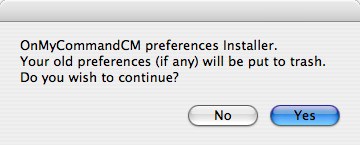
  4. Click Yes as you have no preferences to worry about.
  5. customize the contextual menu items for os x

  6. Click OK after the installation was successful.
  7. customize the contextual menu items for os x

  8. Finder will restart on its own (again, your desktop icons will momentarily disappear). Now right-click somewhere in a Finder window and in the context menu you’ll see an entry titled On My Command. Select it and click the entry titled Change dir and list contents in Terminal.
  9. customize the contextual menu items for os x
    click to enlarge

  10. A Terminal window will appear and show a detailed list of all the files in the folder that you right-clicked in.
  11. customize the contextual menu items for os x
    click to enlarge

Installing more commands

  1. Once more back in the .dmg file, open the OMCEdit folder, and drag OMCEdit to your Applications folder.
  2. customize the contextual menu items for os x
    click to enlarge

  3. Launch OMCEdit, make sure you’re connected to the Internet, and click the Download Commands button.
  4. customize the contextual menu items for os x
    click to enlarge

  5. Click Connect
  6. customize the contextual menu items for os x
    click to enlarge

  7. and about 500 pre-created commands will be downloaded.
  8. customize the contextual menu items for os x
    click to enlarge

  9. Find one that interests you, highlight it, and click the Append to Commands button.
  10. customize the contextual menu items for os x
    click to enlarge

  11. Try right-clicking a file or folder (depending on the command you installed) and confirm your newly added command is a part of the contextual menu. If you want to add more commands and you’ve closed OMCEdit, re-launch it and click the Cached Commands button.
  12. customize the contextual menu items for os x
    click to enlarge

  13. Since there are hundreds of commands, you may want to narrow down the list by using the Find box. If you’re interested in the commands that relate to MP3 files, use mp3 as a keyword.
  14. customize the contextual menu items for os x
    click to enlarge

  15. When you’re done, right-click on a file or folder and check out your new menu.
  16. customize the contextual menu items for os x
    click to enlarge

Editing your commands

  1. After you’ve installed a few commands, you can customize their location in the contextual menu, name etc. To do so, open OMCEdit, highlight the command you want to change, and click the Edit button.
  2. customize the contextual menu items for os x
    click to enlarge

  3. From here you can change just about everything relating to the command. If you want to put it in the “top level” of your right-click contextual menu (as opposed to being in the On My Command list) – select First Level from the Location: drop down list.
  4. customize the contextual menu items for os x
    click to enlarge

  5. For more info on using OMCEdit, see the OMCEdit ReadMe.rtf file in the .dmg, or visit http://knut.macdisk.de/.
  6. If you can’t find a command in the list of pre-created commands, see the Tutorials folder inside the OnMyCommand .dmg file to create (and share) your own.

Posted in Mac.

Get Simple Help tutorials just like this one in your email inbox every day - for free! Just enter your email address below:


You can always opt out of this email subscription at any time.

32 Responses

Stay in touch with the conversation, subscribe to the RSS feed for comments on this post.

  1. Alison says

    holy hell this is exactly what i’ve been looking for thank you SO much!

  2. Anon E Mouse says

    thank you! its funny last week i was complaining to a friend that it was impossible to do this i guess i should tell him i was wrong haha

  3. Rodrigo says

    Why isn’t this prog featured on more mac sites it’s fantastic – thanks!!

  4. Alain says

    I’m looking for “Send with Thunderbird”, but i don’t find it. Thank you so much if you can help me!

  5. Roxyhwfa says

    Brilliant, what a really useful app!

  6. george says

    How do i make a right clock “open url” and “make link” something happen and now i cannot make a link in a email… please help!!

  7. Christian says

    Is this also working with Leopard?

  8. David says

    Has anybody figured out how to use “Send to Mail” to work with Thunderbird?

    I’m desperate.

  9. ojak says

    Is there any way to flatten the “More” menu in Leopard (ie. the way it was in Tiger and the examples above)?

    When I set “Location” to “Top Level”, they do not show up in the top level, rather they show up in the “More” menu, which is painfully annoying. Any ideas?

  10. Simius says

    Will it work with ProTools commands?

  11. Angel says

    Thanks for explaining this so well. You think you know macOS, and then something new comes up…again

  12. Containers says

    Thankyou for this!! There’s always more you can find with macOS. Here’s looking forward to Snow Leopard!

  13. Steve says

    Having a problem getting burn to disc to work, when I select the add-on.. on my command and try to run the add-on to test it, it gets an error message: return error 1703. Also I don’t have the edit button on my app.
    Thank
    Steve

  14. Lars Hundere says

    WHY HASN’T ANYONE ASKED ABOUT SNOW LEOPARD COMPATIBLITY?

    (maybe it’s already been mentioned and I overlooked it?)

  15. Guido says

    It seems that OMC is not compatible with Snow Leopard. I tried with my MacBook Pro with no look.

    Can anybody confirm this?

    Cheers,

    Guido

  16. Guido says

    Ok, I sorted it out! Snow Leopard does not support contextual menu items anymore; rather, it uses services. You need Shortcut from the same software house of OMC in order to run OMC. Everything is explained here:

    http://www.abracode.com/free/cmworkshop/macosx_10_6_snow_leopard_and_contextual_menu_plugins.html

    Cheers,

    G.

  17. Giovanni says

    @Guido from the link you posted it looks as though you must go to “More items” to get.
    All I really want is to add a “Rename” option directly above Copy on my right-click menu. I assume this is not possible and it would end up under “More items”?

  18. Guido says

    @Giovanni
    I do not know how you could do that, Giovanni… however in Finder you can rename a file by selecting it and pressing the return key.

    The solution I pointed out involves using a customizable keyboard shortcut to call the contextual menu; moreover, Shortcut allows you to assign keyboard shortcuts to contextual menu elements. It is particularly useful in conjunction with On My Command. For example, I created a “Create new text file and edit it in default text editor” element with OMC and then I used Shortcut to assign assign to it the Command + Alt + N shortcut.

    Cheers,

    Guido

  19. yes says

    totally agree with the post above.
    i spent all the afternoon by trying to f9nd a solution for snow leopard but dont need anymore!
    learn how to use automator, i just learned it in 5′ by watching this video
    (i did some tasks from time to time in the past)
    it’s unbelieveble how many things i just added to the right menu (cut files,enque folders to cog or vox etc)and also +++++ resize/crop/change image format +++ i just started!
    and all this by the core, and not any 3rd part software

Continuing the Discussion

  1. error is the mother of all inventions linked to this post on June 14, 2007

    [...] OnMyCommand >> No Comments so far Leave a comment RSS feed for comments on this post. TrackBack URI Leave a comment Line and paragraph breaks automatic, e-mail address never displayed, HTMLallowed: <a href="" title=""> <abbr title=""> <acronym title=""> <b> <blockquote cite=""> <cite> <code> <del datetime=""> <em> <i> <q cite=""> <strike> <strong> [...]

  2. » How To: Create your own right-click commands with OnMyCommand linked to this post on June 15, 2007

    [...] We’ve actually covered OnMyCommand once before, but it’s not necessarily the easiest tool to use, and Simplehelp’s guide is thorough, detailing not only how to add commands, but also how to find a giant repository of pre-build commands. If you really want to take control of your right-click menu, OnMyCommand is the way to do it. How to add commands to the OS X “right-click” menu [Simplehelp] [...]

  3. her hotdog » Blog Archive » How To: Create your own right-click commands with OnMyCommand linked to this post on June 17, 2007

    [...] We’ve actually covered OnMyCommand once before, but it’s not necessarily the easiest tool to use, and Simplehelp’s guide is thorough, detailing not only how to add commands, but also how to find a giant repository of pre-build commands. If you really want to take control of your right-click menu, OnMyCommand is the way to do it. How to add commands to the OS X “right-click” menu [Simplehelp] [...]

  4. Do More with the OS X Right-Click Menu « Mac-aholic linked to this post on June 19, 2007

    [...] Do More with the OS X Right-Click Menu Simplehelp has a great how-to on adding commands to the OS X’s right-click menu using OnMyCommand. [...]

  5. HOWTO: Añadir opciones al menú del botón derecho de OS X » The Decline linked to this post on June 19, 2007

    [...] Estoy seguro que todos los switchers que hasta ahora han estado trabajando con Windows han encontrado a faltar algunos comandos que se ejecutaban con el menú que aparecía al pulsar sobre los archivos con el botón derecho. Pues bien, desde que me pasé a Mac OS X he intentado descubrir cómo modificar ese menú y para mi sorpresa, ayer encontré una página que enlazaba a Simplehelp. En un completo “How to add commands to the OS X “right-click” menu” explican paso a paso cómo conseguirlo. [...]

  6. Diigo daily 06/20/2007 « fuzzybrain|daisychain|blogdrain linked to this post on June 20, 2007

    [...] How to add commands to the OS X “right-click” menu – Simplehelp [...]

  7. Para los “switchers” linked to this post on June 21, 2007

    [...] Echadle un ojo a este tutorial de instalación y uso. Archivado en: Apple Mac software tip tutorial [...]

  8. Mod your context menus « 0ddn1x: tricks with *nix linked to this post on July 2, 2007

    [...] Mod your context menus Filed under: OSX — 0ddn1x @ 2007-07-01 16:55:52 +0000 http://www.simplehelp.net/2007/06/12/how-to-add-commands-to-the-os-x-right-click-menu/ [...]

  9. links for 2007-08-04 « geek notes linked to this post on August 4, 2007

    [...] How to add commands to the OS X “right-click” menu – Simplehelp The Simplehelp weblog has a detailed guide to adding commands to Finder’s right-click context menu using a freeware application called OnMyCommand. (tags: macosx software finder hacks) [...]

  10. Top 10 Right-Click Tools - facebookat linked to this post on September 19, 2008

    [...] that adds your own scripts or already-compiled offerings to Finder’s right-click menu. Check out SimpleHelp’s concise and clear guide for help getting started with OnMyCommand. 2. Create file-aware right-click options Many of the [...]

  11. Customizing your context menus with On My Command - James Andrews linked to this post on May 3, 2009

    [...] am not going to write a tutorial on how to use OMC, but rather refer you to one on Simple [...]

  12. E-mailing photos like windows - MacTalk Forums linked to this post on December 4, 2009

    [...] to Mac some info on what you want to do here How to add commands to the OS X "right-click" menu – Simple Help __________________ flickr : redbubble : SmugMug :D Good manners sometimes means simply putting [...]

  13. One thing I can't really do on a mac - Ultimate Metal Forum linked to this post on December 19, 2009

    [...] editor which are lame. learn how to use Automator to create Workflows , or just be lazy and use THIS. or you can go the full tweaker route and learn how to write contextual menu plug-ins for OS X. [...]


Some HTML is OK

or, reply to this post via trackback.