A step by step guide to installing Ubuntu 8.04 Hardy Heron on your Eee PC

by Ross McKillop on July 28, 2008

Eee PC Linux

This tutorial will take you every single step of the way through installing Ubuntu 8.04 (Hardy Heron) on your Asus Eee PC. The steps are specific for the Eee PC 900 (16GB flash SSD model), but will be similar for other Eee PC’s.

  1. First, download the Ubuntu Eee iso. This is a version of Ubuntu 8.04 created specifically for the Asus Eee PC.
  2. You have a choice of 3 different ways to install Ubuntu.
    1. You can burn the .iso file to CD, and use an external USB CD/DVD drive to boot from that CD.
    2. You can transfer the iso file (and make it bootable) to a USB memory stick/thumb drive using the UNetbootin-Ubuntu Eee tool (Windows version/Linux version).
    3. You can transfer the .iso file to an SD card (and make it bootable) using the same UNetbootin-Ubuntu Eee tool. This method might be the most “painful” - but ars technica has you covered with the instructions.
  3. This tutorial uses the “transfer to USB thumb drive” method (I happen to have one), and it’s probably the fastest way.
  4. Download the Windows version of UNetbootin-Ubuntu Eee if your Eee PC is currently running Windows, or the Linux version if it’s running Linux.
  5. This tutorial assumes you have XP installed - if you have Linux, follow this tutorial to transfer the iso to your USB thumb drive, and then skip down to step #11 below.
  6. You may need to format your USB thumb drive in order for the installation to work. Though you may not need to format, it’s easier to just do it and carry on rather than find out later that a format was required.
  7. Launch UNetbootin-Ubuntu Eee by double-clicking it.
  8. Make sure that Ubuntu Eee and 8.04 are selected from the Distribution drop-down menus. Select the Diskimage radio button, and then click the button. Navigate to your ubuntu-eee-804.iso file and select it.

    Finally, select the drive that represents your USB thumb drive. For my Eee PC, the USB thumb drive is E:\ Click OK to begin.


  9. click to enlarge

  10. UNetbootin-Ubuntu Eee will start to convert and transfer the iso file to your thumb drive. Note: if it seems to ’stall’ at file #8, don’t worry - it’s at that step that the largest file is being converted.

  11. click to enlarge

  12. Once UNetbootin-Ubuntu Eee has finished, you’ll be prompted to reboot your device. Click the Reboot Now button.

  13. click to enlarge

  14. As soon as your Eee PC starts up again, hit the Esc (escape) key a few times until a Please select boot device: window appears. Use the down arrow key to select your USB thumb drive, and once it’s highlighted, hit the Enter key on your keyboard.
  15. Your Eee PC will now boot into Ubuntu. Remember, this is the “live” version of Ubuntu - it’s running from your USB thumb drive, not your Eee PC’s hard drive. Play around for a bit if this is your first time using Ubuntu. You can still back out of the installation and return to whatever Operating System your Eee PC came with (just reboot again).

  16. click to enlarge

  17. To continue and install Ubuntu to your Eee PC, click the Install icon on the desktop.
  18. Select your language and click the Forward button to continue.

  19. click to enlarge

  20. Now select your city (or the closest one to it in the same time zone) and click Forward.

  21. click to enlarge

  22. Choose the keyboard layout you want to use, and yep you guessed it - click Forward.

  23. click to enlarge

  24. If you are in fact using the Eee PC 900 (or higher), select Guided - use entire disk. If you have an earlier model, with a smaller SSD drive, you may want to review the details here and decide if you want to have Ubuntu create a swap partition. Alternately, if you have a model with multiple “drives” (xGB SSD and xGB Flash), you may want to install Ubuntu on the SSD drive, and then mount the /home folder on the Flash drive). When you’re ready, click Forward.

  25. click to enlarge

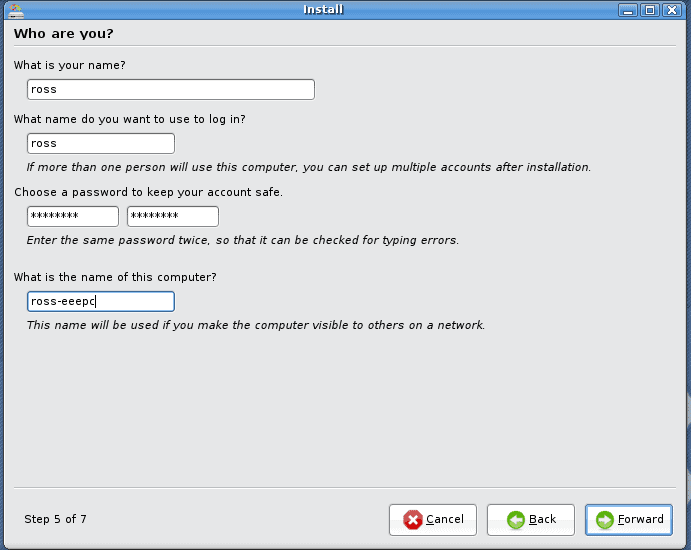
  26. Enter the appropriate info in each of the provided fields. When you’re done, click Forward.

  27. click to enlarge

  28. Review the summary window, and click Install to begin the installation.

  29. click to enlarge

  30. Grab a cup of coffee - the installation will take a while. Don’t go too far away though…
  31. Once the installation has completed, click Restart now. Let your Eee PC boot normally (don’t hit the Esc key as it starts) - and you’ll boot into Ubuntu. That’s it - you’re done!
Related Posts:
  • How to dual boot your Asus Eee PC 900 with Windows XP and Ubuntu Linux
  • How to install Ubuntu Eee 8.04.1 on your Eee PC
  • How to increase the screen resolutions available to Ubuntu while running in Parallels for OS X
  • How to install and setup Netbook Remix on the Eee PC
  • How to install Banshee 1.0 in Ubuntu
  • Get Simple Help tutorials just like this one in your email inbox every day - for free! Just enter your email address below:


    You can always opt out of this email subscription at any time.


    Bookmark and Share

    { 4 trackbacks }

    eNik » Blog Archive » eeebuntu - geek stuff
    07.28.08 at 5:18 am
    How to customize Ubuntu for your Eee PC - Simple Help
    07.31.08 at 3:00 am
    How to dual boot your Asus Eee PC 900 with Windows XP and Ubuntu Linux - Simple Help
    08.07.08 at 12:28 am
    How to install and setup Netbook Remix on the Eee PC - Simple Help
    08.07.08 at 10:26 pm

    { 19 comments… read them below or add one }

    1 Damien 07.28.08 at 7:24 am

    Cool!

    I have been thinking of getting an Eee PC. My only concern is the wireless issue. Does it work well under Ubuntu?

    2 Gravity 07.28.08 at 9:29 am

    thnx alot… i was planning to install Ubuntu. ill use this guide. thnx!

    3 Ross McKillop 07.28.08 at 9:35 am

    @Damien - Wireless and wired connects both work great right out of the box (assuming you’re using Ubuntue Eee as the distribution - “regular” Ubuntu will take some tweaking to get wireless working)

    4 wooikok 08.22.08 at 8:47 pm

    i am really interested to get ubuntu 8.04 on my eeePC 701 (4GB SSD), but i am a bit concerned about ur guide no. 17,care to explain please?
    i have a 16GB SDHC card plugged into the card reader, can i install ubuntu on the SSD and put the /home on the SDHC card?..if yes how do i go about doing it?
    is there any issues with the hardware compatibilities and i use a lot of skype(video) on Xandros eeePC, any solutions?
    thanks

    5 wooikok 08.22.08 at 8:51 pm

    sorry another question, will i be needing the fix suggested by this http://wiki.eeeuser.com/getting_ubuntu_8.04_to_work_perfectly
    once i install ubuntu 8.04 on my eeePC 701..

    6 Ross McKillop 08.22.08 at 9:38 pm

    @wooikok,

    1. Yes you can make your SDHC card your /home folder.
    2. Re: Step #17 - read http://wiki.eeeuser.com/ubuntu:eeexubuntu:customization carefully. It explains the pros and cons of having a swap on a small hard drive.
    3. I don’t know exactly what hardware comes with the 701 - I don’t have one, so I can’t test it. I suspect that if you follow this guide and use Ubuntu Eee instead of “normal” Ubuntu, it will all work. But again, I can’t confirm that because I don’t have a 701.
    4. Backup Xandros and try out Ubuntu Eee. If it doesn’t work, use the restore CD and then move all your files from the backup to your Eee PC.
    5. It’s unlikely you’ll need any of the fixes outlined in the link you included in your second comment. Ubuntu Eee includes most of them (maybe all) by default.

    Hope this helps,

    Ross

    7 wooikok 08.22.08 at 10:25 pm

    sorry..reslly linux noob here..
    can explain how i can make the sdhc as /home folder?…
    thanks for the really prompt reply..
    will be booting up with the “live” version on my usb thumb drive later…n test out all the hardware on eeePC 701..
    thanks

    8 wooikok 08.23.08 at 4:18 am

    tried the live version..liked it…considering migrationg my eeepc 701 to ubuntu 8.04
    but what about webcam function n the wifi..seems to be some problem
    any solutions?

    9 wooikok 08.23.08 at 6:02 pm

    got ubuntu 8.04 on my eeePC now…all working…except having issues with mounting my sd card.i noticed that when i opn the fstab file in a text editor this is the referrence to my media>>
    ‘/dev/sdb1 /media/cdrom0 udf,iso9660 user,noauto,exec,utf8 0 0″
    i tried to change it using a text editor to
    “/dev/sdb1 /media/MMCSD auto user,auto,exec,rw 0 0″ (from
    http://wiki.eeeuser.com/getting_ubuntu_8.04_to_work_perfectly)
    but i got a response of “You do not have the permissions necessary to save the file.”…any help
    thanks

    10 wooikok 08.23.08 at 6:09 pm

    got ubuntu 8.04 on my eeePC but now having problems with mounting my sd card. tried the tweak form ubuntu wiki but when i try to change the fstab file, i got a response of not having permission to change the file.
    this is found in the fstab file
    “/dev/sdb1 /media/cdrom0 udf,iso9660 user,noauto,exec,utf8 0 0″
    need to change to
    “/dev/sdb1 /media/MMCSD auto user,auto,exec,rw 0 0″
    how to do that?
    thanks

    11 Rmon 08.26.08 at 3:56 pm

    While installing 8.04.1 ubuntu-eee and writing up my own similarly-intended guide (good job, btw), I noticed that the installer skips step 6 of 7. Same thing appears in your screenshots. Any idea what’s up? The website form above links to the question as posed on ubuntu forums.

    Two other comments:

    -first of all, how do you get such great screenshots while installing?
    -secondly, I think some more discussion about partitioning may be useful. Check out my discussion here, feel free to make use of it in this guide if you find it useful.

    12 wooikok 08.26.08 at 8:05 pm

    got everything working on my eeePC n now also got it on my dell laptop and desktop….one word…wow…

    13 azharz 09.07.08 at 10:19 pm

    please send me , a tutorial for instal ubuntu in my eee pc

    14 Ross McKillop 09.07.08 at 10:35 pm

    @azharz -

    You can find a tutorial to install Ubuntu on your Eee PC here.

    15 Scott Westron 09.10.08 at 9:36 am

    Hi,

    I’ve been trying to do follow this firstly with an SD card and then went and bought a USB memory stick large enough to do it but I’m having a problem at stage 12.

    After I slect the USB drive, instead of seeing the OS I get a black screen with writing along the top, then some dots appear and draw along the top before it says ‘ready’ and then stops at that…

    Am I doing something wrong?

    Any help would be greatly appreciated.

    16 Joachim Holden 09.12.08 at 9:01 am

    Hi, and thanks for a great guide! I have a problem with the wireless (I followed this guide on an Asus eee 900). I don’t see any wireless networks, even though I know there is one available. Any known issues with this?

    17 Joo 11.07.08 at 5:32 pm

    Thanks for the help buddy! You have a great tutorial!
    Good luck with everything!

    18 calxgreen 11.14.08 at 7:54 am

    This tutorial looks really straight forward I am really looking forward to installing ubuntu on my eee pc 1000.

    I have one small issue that perhaps you can assist me with; I am running xandros and want to install unbuntu instead using only a usb drive (since an external cd drive for me is not an option). I cannot Launch UNetbootin-Ubuntu Eee since it doesn’t have a program that can execute it.

    Also I have loaded the ubuntu iso disk image to my usb drive but the drive says its unbootable eventhough it is formatted correct. Can someone pls assist me??

    19 Wastedvampire 11.16.08 at 1:24 am

    Tried installing ubuntu eee pc on a 1000HA but i’m stucked at step 16. It doesn’t go beyond that. You’re guide has been a great help. I hope you can help me shed light on this one.

    Leave a Comment

    You can use these HTML tags and attributes: <a href="" title=""> <abbr title=""> <acronym title=""> <b> <blockquote cite=""> <cite> <code> <del datetime=""> <em> <i> <q cite=""> <strike> <strong>