Skip to content


How to install Windows 7 in OS X using Parallels Desktop – a complete walkthrough

Mac Windows

This tutorial will guide you every step of the way through installing Windows 7 on your Mac using Parallels Desktop 4.0. Parallels Desktop for Mac allows you to run other Operating Systems (like Windows 7) in a virtual environment, while OS X is running at the same time. Though Windows 7 won’t run as fast in Parallels Desktop as it does via Boot Camp, it is a very easy way to get Windows 7 running on your Mac.

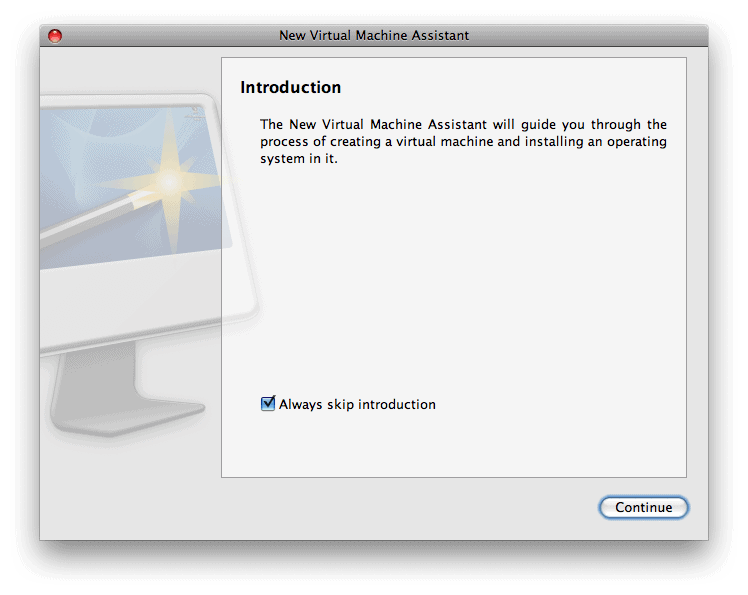
  1. If you’re using Parallels Desktop for the first time, an Introduction window will appear. Otherwise, click File -> New Virtual Machine…. Click Continue.

  2. click to enlarge

  3. On the Operating System Detection screen, select either the Real CD/DVD-ROM Drive option if you have Windows 7 burned to DVD (and make sure the disk is in your DVD drive). If you’re using an .iso image, select CD/DVD Image, click the Choose… button, navigate to your Windows 7 .iso file, select it and click OK. When you’re ready, click Continue.

  4. click to enlarge

  5. The automatic detection will probably fail. From the Type: drop-down, select Windows. From the Version: drop-down, select Windows 7 (experimental). Click Continue.

  6. click to enlarge

  7. From the Virtual Machine Type window, select Custom and then click Continue.

  8. click to enlarge

  9. Choosing the Number of CPUs: will depend on your Mac. I opted for 1, which is always a safe bet. You’ll want to allocate at least 1GB (1024MB) of RAM for your Virtual Machine, as Windows 7 will run quite slowly if you set it any lower. Click Continue.

  10. click to enlarge

  11. Select New image file on the Hard Disk Options screen, and once again click Continue.

  12. click to enlarge

  13. Specify a size for your virtual hard drive, and select Expanding disk (recommended). This will allow you to create a file that grows in size as you add files and programs to Windows 7, rather than creating the full “size” of your virtual hard drive immediately. Yet again, click Continue.

  14. click to enlarge

  15. Select Shared Networking (Recommended) as the Networking Type and click Continue.

  16. click to enlarge

  17. On the Optimization Options screen, select Virutal Machine (Recommended) if you want Windows 7 to have more resources while it’s running, or Mac if you want OS X to have more resources while Windows 7 is running. Click Continue.

  18. click to enlarge

  19. Finally, enter a name for your virtual machine (something ‘obvious’ like “Windows 7″ would be ideal). If you want to enable File Sharing and User Profile Sharing, leave those boxes checked. Click the small arrow next to More Options and decide if you want to have a launch icon on your Desktop for Windows 7, and if you want to share your virtual machine with other users on your Mac. When you’re ready, click Create.

  20. click to enlarge

  21. Again, the same as in step #2, select Real CD/DVD-ROM Drive if you’ve burned Windows 7 to DVD (and make sure it’s in your DVD drive) or CD/DVD Image if you’re using an .iso or image file of Windows 7. Click Done to begin the installation.

  22. click to enlarge

  23. Windows 7 will begin loading files and start the installation.

  24. click to enlarge

  25. Select the appropriate language, time and keyboard layout for you. Click Next to continue installing Windows 7.

  26. click to enlarge

  27. Click the Install now button.

  28. click to enlarge

  29. Setup will initiate and take a moment or two to do its thing.

  30. click to enlarge

  31. When you’re presented with the Software License Terms, place a check in the I accept the license terms box, and click Next.

  32. click to enlarge

  33. Click the Custom (advanced) ‘button’ when asked which type of installation you want.

  34. click to enlarge

  35. You should only have one option on the Where do you want to install Windows? screen. If you have more than one, make sure to select the one that is the size you specified back in step #7 and has the idental number in the Free Space column. Again, click Next.

  36. click to enlarge

  37. Go grab yourself a cup of coffee. It’ll take a while for Windows to install itself. Windows 7 may reboot itself during this process.

  38. click to enlarge

  39. After the actual installation, you’ll need to setup Windows 7 itself. Enter a username and computer name in the spaces provided. Click Next.

  40. click to enlarge

  41. Set a password and password hint, and click Next.

  42. click to enlarge

  43. Enter the Product key that was provided with your copy of Windows 7, and unless you don’t want to activate Windows when you’re online, leave the box checked. Click Next.

  44. click to enlarge

  45. For now, click Use recommended settings. They can always be changed later.

  46. click to enlarge

  47. Make sure your time and date settings are correct, then click Next.

  48. click to enlarge

  49. The final part of the setup will prepare and create your desktop.

  50. click to enlarge

  51. And now, finally, Windows 7. But your work isn’t over quite yet. There’s a possibility that networking (including your Internet connection) and sound won’t be working – yet.

  52. click to enlarge

  53. Press the Ctrl+Alt keyboard combo to release your mouse and keyboard from Parallels (Windows 7). From the Parallels Desktop menu, select Virtual Machine and from the drop-down list, select Install Parallels Tools…
  54. You’ll be presented with a description window of Parallels Tools. Review it (if you want) and then click Continue.

  55. click to enlarge

  56. Back inside Windows 7, an AutoPlay window will appear. From it, click the Install Parallels Tools button.
  57. The Parallels Tools installer will launch. It will install each of the parts of Parallels Tools, and can take several minutes. You might refresh your coffee at this point. .

  58. click to enlarge

  59. Once Parallels Tools has installed, restart Windows 7

  60. click to enlarge

  61. At this point you should have Internet connectivity. If you don’t have sound, make sure to run Windows Update, and it will detect any missing drivers (and find updates to the Operating System itself). Install all of the updates, and reboot again (if prompted). You should now have a fully working version of Windows 7 installed in Parallels.

Posted in Mac, Windows.

Get Simple Help tutorials just like this one in your email inbox every day - for free! Just enter your email address below:


You can always opt out of this email subscription at any time.

61 Responses

Stay in touch with the conversation, subscribe to the RSS feed for comments on this post.

  1. zack78 says

    I installed properly Windows 7 with Parallels, network sharing is working and internet also, but when I try to update windows, or activate the copy, or update the sound driver I get the error 80072EE2 and it seems like there’s no response from the net…….. I tried everything and red 100 forum over the internet… please, someone can help me to fix this problem??

  2. Brian Lang says

    You can also install under Parallels Desktop 3.0. I did it with help from the Parallels Forums. Basically all went well except for the Parallels Tools installation. The steps to solve that problem are documented here: http://forum.parallels.com/showthread.php?t=32976

  3. zack78 says

    Thank you very much, I red the forum from parallels but my problem isn’t related to Parallels, in fact parallels tool is update and already intalled in the virtual machine. Everything works fine, but the problem is that I can’t update windows 7, I mean the “windows update” always keep saying “error 80072EE2″. Internet is working, I tried to swith from “shared network” to “bridget network” hoping this could solve the problem, but it seems that windows can’t find the update…. any suggest?

  4. Jordan says

    I couldn’t get my internet working and I was googling and this is the best thing to come up. Thank you so much!!! You’re so awesome!

  5. Rohit Nair says

    I’m trying to do this, but the installation fails right at the beginning, giving me the following error
    “Windows failed to load because the firmware(BIOS) is not ACPI compatible”
    What could be the issue here ? I’m trying to install using a .iso image and not a physical DVD.

  6. thax says

    Rohit,

    My guess is that you’re (like me) using Parallels Desktop 3. The guide above is for version 4. I ended up going with Sun’s VirtualBox instead which seems to handle it (installing now). It’s free for personal use.

  7. wyy says

    I installed Windows 7 RC and have it working properly. However, my right mouse button refuses to function even though it works on my other virtualization running XP. All else works on the Win7 RC, including networking, etc. It is just that the right mouse button simply won’t function. I would welcome any advice.

  8. saf says

    Thanks to thax for having mentioned about Sun’s VirtualBox… works great!

  9. alex says

    Thanks for the info. I am getting to step 15 and I am getting this message… ”
    A required CD/DVD drive device driver is missing. If you have a driver floppy disk, CD, DVD, or USB flash drive, please inset it now. NOTE: If the Windows installation media is in the CD/DVD drive you can safely remove it for this step.”

    I am using a .iso for the install. When I click OK is says “No devise drivers were found. Make sure that the installation media contains the correct drivers, then click OK.”

    Any ideas? thanks,

  10. Kev says

    I am having the same issue as above some feedback on this would be very useful

  11. Jacob says

    Same issue as Alex…..
    “Thanks for the info. I am getting to step 15 and I am getting this message… ”
    A required CD/DVD drive device driver is missing. If you have a driver floppy disk, CD, DVD, or USB flash drive, please inset it now. NOTE: If the Windows installation media is in the CD/DVD drive you can safely remove it for this step.”

    I am using a .iso for the install. When I click OK is says “No devise drivers were found. Make sure that the installation media contains the correct drivers, then click OK.”

    Any ideas? thanks,”

    Except im using a disc to try and install from…….
    Sigh….

  12. Gaspar de Sousa says

    yes my comment as Zack78 saidy

    I installed properly Windows 7 with Parallels, network sharing is working and internet also, but when I try to update windows, or activate the copy, or update the sound driver I get the error 80072EE2 and it seems like there’s no response from the net…….. I tried everything and red 100 forum over the internet.

    what is the trure way…

  13. Jim says

    I had the same problem “A required CD/DVD drive device driver is missing.” I moved the disk image to my hard disk and restarted the process. Worked OK this time, and was much much faster than trying to start from the DVD.

  14. Simon says

    I was having the same problem as Alex, Kev, Jacob, and Jim. I had chosen 32 bit Windows 7, apparently in error. When I retried with 64, it worked exactly as shown in Ross’ walkthrough.

    Thanks very much for the extremely helpful tutorial.

    Simon

  15. halcon says

    hola a todos instale windows 7 en mi pc , pero no me reconoce la targeta de audio y la pantalla solo tiene resolucion de 600 x 480 y no lo puedo ajustar , le hice las actualizaciones y todo sigue igual . Me gustaria que alguien me explicara como instalarlo el sistema o que tengo que hacer para que se solucione el problema. gracias

  16. halcon says

    hello! to all windows installed in my pc 7, but I do not recognize the audio card and the screen resolution is only 600 x 480 and I can not adjust, we did the updates and everything remains the same. I would like someone to explain to me how to install the system or have to do to resolve this problem. thanks

  17. Ashu says

    Hi,

    I am facing the same problem as Alex.. Please help me…

    Regards,
    Ashu

  18. Neil says

    Hello. I get to Step 12, at which point I get the message “No boot device is available”… Any suggestions? I just got this iMac and need Windows to run CAD programs.

    Thanks!

  19. martijn says

    same problem here with device driver.. Same problem a s alex

    Please help..

  20. Charles Tryon says

    If you are seeing the “can’t find drivers” problem that some people are complaining about, try downloading the iso again. I ran into this problem (“A required CD/DVD drive device driver is missing.”), and I went to the Microsoft site and downloaded the iso image again. The second time, it was clearly a little different (different graphics when I booted), and this time it worked. There may have been either a glitch in the download, or something wonky about the image. (Heavens! Microsoft would never release software with a bug in it, would they???)

  21. Mattone says

    Which version of the Windows 7 RC do you download? the 32-bit or 64-bit? I’m using an iMac 2.4ghz Core 2 Duo. According the Apple this is a 64-bit processor but I downloaded and tried installing the 32-bit version thinking this would be more compatible. I got the “can’t find drivers” problem. could this be related to the version of the release candidate I downloaded? I’d be interested which versions others have tried.

    Thank you!
    mattone

  22. Mattone says

    I re-downloaded the 32-bit version of Windows 7 and installed it per the instructions on this page (thank you!) and it works fine. After completing the installation of the Parallels Tools, it restarted the virtual machine and came back in Coherence mode. I don’t know why as I don’t remember being asked or told this would happen but it seems to work very well.

    Matt

  23. sweetwater says

    Thax and saf,
    are you able to print or use USB with Virtualbox?

    Everyone else,
    are you able to do so with Parallels?

  24. Shawn says

    I just wanted to say thanks. Your excellent walkthrough was a big help!

  25. Tunedelicious says

    Worked perfectly for me; even fewer steps were needed with the latest Parallels and the final RC of Windows 7. Windows Ultimate took about 45 minutes on my 2008 2.4-GHz Core-2 Duo MacBook. It even logged me into my WAN without requesting a password!

  26. Marcelino says

    Thank you!!! After struggling a great deal because I didn’t know what I was doing and unfortunately the Geek Squad guys weren’t geeky enough to be able to help me, this simple step by step guide was just what I needed. Worked like a charm. Thanks!!!!

  27. Nathan says

    I can’t get internet on my windows 7 any advice or help?

  28. JD says

    Nice write up. Seems to work for the upgrade version of the production release. I did have an issue at first with no sound, no internet/networking, and stuck in 600×800 resolution. I reinstalled Parallel tools and that fixed everything. Not sure what the deal was but the tools automatically installed the first time but didn’t seem to do anything.

  29. Joao says

    I have an existing BootCamp installed Windows 7, i tryed booting it on parallels, it works, but, it doesnt install the parallels tools, thus, it runs very slow, and doesnt work with coerence, resolution is screwed ,etc.

    Parallels tools always fails to install.

    Any ideas?

  30. Yusra says

    Hallo, bitte dringend um HILFE!!!
    Ich habe mir ein neues MacBookPro in der Version 10.6 gekauft und nebenbei einen Parallel Desktop 5 geholt. Habe es mit Windows 7 installiert aber während der Installation sagt er: “Ein erforderlicher CD / DVD-Laufwerk Gerätetreiber fehlt.”
    Im Internet habe ich recherchiert aber nichts gefunden. Oben gibt es auch Leute, die das gleiche Problem haben aber ich habe keine richtige Antwort gesehen, was man jetzt genau machen muss. Kann mir bitte jemand beschreiben, was ich genau machen muss?!?
    Es muss doch irgendwie eine Lösung geben…

  31. feddy says

    Guys i have a problem with windows 7 i have installed it and every thing wrks so fin the only problem is the sound when i play music or anything he sound doesn’t come out for the windows but in mac it does come out so tried everything and i can’t solve it any1 can help me plizzzzzzzz

  32. Zubin says

    Ok i installed it and everything but the only thing is that I can’t actually see my desktop when im in Windows 7. Can someone please help!

  33. david says

    Very Clear & Useful Tutorial :)
    …I had a problem on sharing Internet connection…
    Thanx

  34. Zaf says

    I have been looking for a while to this solution and your post helped me solve it immediately. Thanks so much!

  35. Clint says

    I keep getting error code “0×8007045D”? can you fix that?

  36. Aileen says

    the step by step instructions are very helpful! Thank you!

  37. jess says

    Hi!

    i need some help here! i manage to create the vitual machine but i cannot boot window 7. I am using the iso image as well. i managed to install window 7 using using the same iso on a pc. can someone help me?

  38. karma says

    I followed your guide… its absolutely brill and works great!

    Many thanks

  39. melaniec says

    I have successfully installed Windows 7 with Parallels 4 on my MacBook as per the instructions about. However, when I get to install Parallels Tools and click continue, I do not get the AutoPlay window in slide 29. Thoughts?

  40. Aymeric says

    thanks a lot for this very clear and helpful walkthrough !

  41. Bob says

    Oh man – thanks so much. Everything worked as described. Thank God for folks like you to share wisdom and experience.

  42. Gayle Marshall says

    HI I installed Windows 7 using Parallels 5 however I could not download the Kasspersky Internet Security that came with the Parallels 5. It asks for a key but I have no key. Could you help with the please.

Continuing the Discussion

  1. Using Boot Camp to install Windows 7 on your Mac: The Complete Walkthrough - Simple Help linked to this post on February 2, 2009

    [...] Note: if you’d rather not dual boot OS X and Windows 7, you can always install Windows 7 in a virtual environment using Parallels Desktop. [...]

  2. Slackerology - Install Windows 7 Beta on Your Mac with Parallels [UltraNewb] linked to this post on February 3, 2009

    [...] XP or Vista is for you. Alternately, you can also multi-boot your Windows 7 desktop with Linux. How to install Windows 7 in OS X using Parallels Desktop – a complete walkthrough [Simple [...]

  3. Install Windows 7 Beta on Your Mac with Parallels [UltraNewb] | Web Burning Blog linked to this post on February 3, 2009

    [...] XP or Vista is for you. Alternately, you can also multi-boot your Windows 7 desktop with Linux. How to install Windows 7 in OS X using Parallels Desktop – a complete walkthrough [Simple [...]

  4. Instalar Windows 7 en Mac con Parallels linked to this post on February 3, 2009

    [...] manual nos llega desde el blog Simple Help donde explican de forma simple y paso a paso como instalar Windows 7 en Mac nutriéndose del conocido programa para virtualizar sistemas operativos Parallels. Solo necesitas [...]

  5. Tutorial: Como instalar Windows 7 en Mac OS X | Windows Seven 7 linked to this post on February 5, 2009

    [...] esta web nos explica paso a paso con imágenes, como [...]

  6. Tutorial: Cómo instalar Windows 7 en Mac OS X | Windows Seven 7 linked to this post on February 5, 2009

    [...] esta web nos explica paso a paso con imágenes, cómo hacerlo! PD: Tenéis que instalar el Parallels [...]

  7. Cómo instalar Windows 7 en Mac con Parallels | Blog de Windows 7 | Win-7.es linked to this post on February 5, 2009

    [...] Si estás interesado en instalar Windows 7 con Parallels en una Mac, accede a la guía desde este enlace. [...]

  8. Hướng dẫn cài Windows 7 trên Mac nhờ Parallels Desktop | Vn Newbies linked to this post on March 15, 2009

    [...] Văn Vượng – Thông tin Công nghệ(Theo Simplehelp) [...]

  9. Install windows 7 to mac, | Windows 7 linked to this post on May 12, 2009

    [...] Note: if you’d rather not dual boot OS X and Windows 7, you can always install Windows 7 in a virtual environment using Parallels Desktop. [...]

  10. windows 7 on my macbook « Robbert Homburg linked to this post on May 17, 2009

    [...] of Windows 7 went perfect. I used these two blogpost to get it al working, the first at simplehelp.net and the other one at lockernerd. When all my windows 7 settings were done and everything was [...]

  11. Install windows 7 to mac, | Windows 7 Keygen linked to this post on May 20, 2009

    [...] Note: if you’d rather not dual boot OS X and Windows 7, you can always install Windows 7 in a virtual environment using Parallels Desktop [...]

  12. mac - How to install Windows 7 in OS X using Parallels Desktop - a complete walkthrough - Simple Help » Beitrag » progress linked to this post on May 29, 2009

    [...] How to install Windows 7 in OS X using Parallels Desktop – a complete walkthrough – Simple Help. [...]

  13. Install windows 7 to mac, | Install Windows 7 linked to this post on June 5, 2009

    [...] Note: if you’d rather not dual boot OS X and Windows 7, you can always install Windows 7 in a virtual environment using Parallels Desktop [...]

  14. Usuários do Parallels Desktop devem atualizá-lo para a versão 4 antes de migrar para o Snow Leopard | MacMagazine linked to this post on September 30, 2009

    [...] Mac OS X Hints | imagem: Simple Help] Tweet This!Share this on FacebookShare this on del.icio.usAdd this to Google BookmarksDigg [...]

  15. Usuários do Parallels Desktop devem atualizá-lo para a versão 4 antes de migrar para o Snow Leopard | Thiago Avelino linked to this post on September 30, 2009

    [...] Mac OS X Hints | imagem: Simple Help] Share and [...]

  16. matuk.com » Dommo #178 – 19/oct/09 linked to this post on October 18, 2009

    [...] http://www.simplehelp.net/ [...]

  17. Cómo instalar Windows 7 en Mac con Parallels | Manuales y Tutoriales linked to this post on October 28, 2009

    [...] Si estás interesado en instalar Windows 7 con Parallels en una Mac, accede a la guía desde este enlace. [...]

  18. Cómo instalar Windows 7 en Mac con Parallels | Tutoriales de Informática linked to this post on October 28, 2009

    [...] Si estás interesado en instalar Windows 7 con Parallels en una Mac, accede a la guía desde este enlace. [...]

  19. Should I partition new macbook hard drive? - Mac-Forums.com linked to this post on January 10, 2010

    [...] some links with step-by-step instructions on what to do. (Google is your friend ) Simplehelp.net [...]


Some HTML is OK

or, reply to this post via trackback.