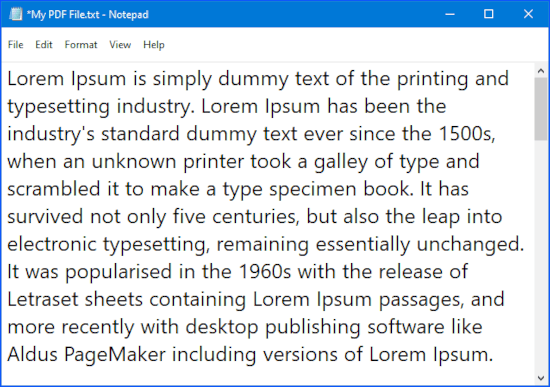
This guide explains how to convert a PDF file into a text file (.txt) that you can then edit etc.
Once upon a time (back in 2009) this guide suggested the use of an app that did a great job of converting PDF files to txt. Since then, that app has gone from free (with a nag screen) to way overpriced, and I can’t in good conscience recommend.
Fortunately, my very favourite PDF reader has included the ability to save PDFs as text, works in all versions of Windows from XP to Windows 10, and it’s completely free.
- Download and install SumatraPDF – an open source, lightweight and generally amazing PDF reader.
- Once the installation has completed, open the PDF in SumatraPDF. Once it’s open, click the “3 dashes” button (see screenshot below) found in the upper-left corner of the App, select File and then Save As…
- Select Text documents from the Save as type: menu, give your text file a name and then click the Save button.
- This will create a .txt file with the contents of the PDF inside of it. Open it up in Notepad or your favorite text editor and give it a look.
- That’s it! Repeat each time you need to convert a PDF to text :)