This tutorial will show you how to remove the “Sent from my iPad” signature that Mail automatically adds to each of the email messages you send from your iPad.
One of the first things you might notice while using Mail on your iPad is that it automatically adds the signature line “Sent from my iPad”. If you’d rather set that to your own email signature – or have none at all – follow the instructions outlined below.
- Start out by selecting Settings from your home screen
- Select Mail from the list on the left side of the Settings window.
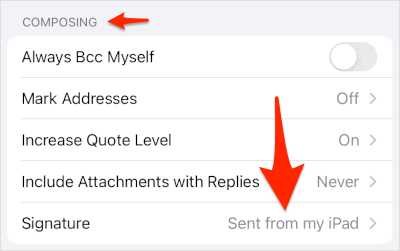
- Scroll down to the section titled COMPOSING and tap the Signature line.
- Tap inside of the box that currently has the “Sent from my iPad” text and remove or change it.
- Once you’ve made your changes, tap the < Mail link to return to the main Mail Settings panel.
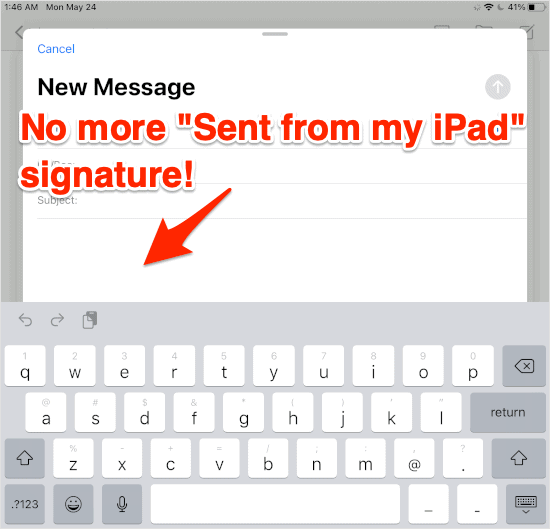
- The next time you compose an email you’ll notice that the old signature is gone and will be replaced by your new one or nothing at all.
- That’s it!