This tutorial will guide you through the steps required to stream videos (movies, TV shows etc) from your PC running Windows 7 to your Playstation 3.
Using Windows Media Player – which comes built in to Windows 7, you can stream (most of) the videos from your PC to your TV via your PS3. I say “most of” because the PS3 can only play certain types of video (full list here). With that said – most of the common video types are supported. So just follow these steps and you’ll be streaming your videos to your PS3 in no time.
- Open Windows Media Player on your PC. Make sure you have at least a couple of videos in your Videos category in the left column.
Select Stream from the menu bar. If you don’t see Automatically allow devices to play my media… in the list of options, please skip down to step #3 below right now. Otherwise, select Automatically allow devices to play my media….
- In the window that pops up, select Automatically allow all computers and media devices. Now jump all the way down to step #7 below.
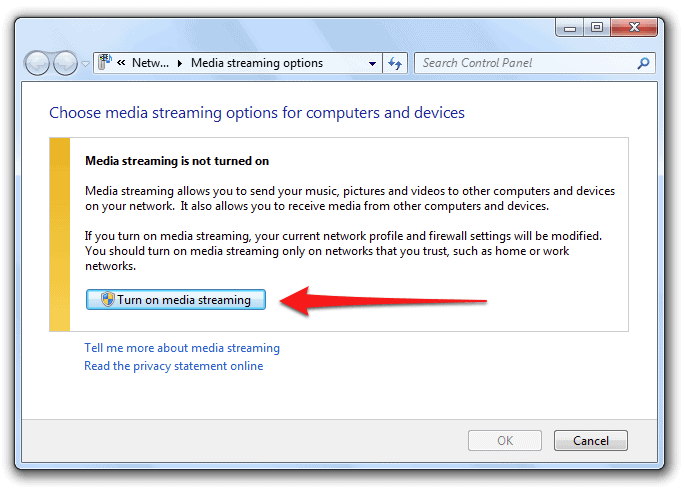
- Select Turn on media streaming….
- When a confirmation window appears, click the Turn on media streaming button.
- Give your media library a name in the space provided. Leave all of the other settings with their default values and click the OK button.
- Now select Stream again from the menu bar. Confirm that Automatically allow devices to play my media… is selected (that there’s a check next to it).
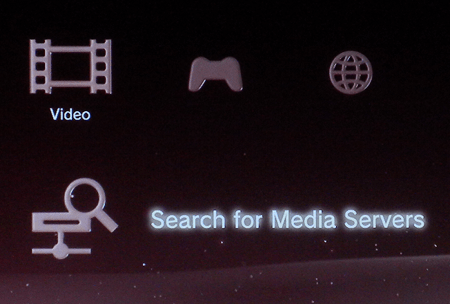
- Power on your PS3 and make sure it’s connected to the same network that your PC is. From the dashboard select Video, then scroll down to Search for Media Servers and select it.
- Wait a moment or two while your PS3 checks for media servers on your network.
- Now you’ll be notified that a media server was found.
- From the Videos list, select your newly found Windows 7 Media library.
- Choose one of your videos, and select it.
- All of the standard video controller options are available – fast forward, rewind, pause etc.
- If you have .wma video files in your collection, you’ll need to enable your PS3 to play them. To do so, go to Settings on your PS3 dashboard and then System Settings.
- From the System Settings menu, select Enable WMA Playback.
- After you select Enable WMA Playback you’ll get a confirmation message. Now you can stream .wma files to your PS3 from your PC.
- That’s it – you’re done!