This tutorial will guide you through the steps to converting an existing video file to a .wmv (Windows Media Video) to play on your Windows Mobile device.
Please note: This guide was published back in 2007 and is now considered out of date, unless you’re using the same (older) software – technically this all still works – you just may want to consider encoding your video to a better format.
- First things first – download Windows Media Encoder. It’s free. It works in 2k/XP and though not ‘officially’, it seems to work fine in Vista, Windows 7 and even Windows 10. The installation is painfully straight forward – you’ll just click ‘Next’ a bunch of times.
- Once the installation has completed, launch Windows Media Encoder. Select Convert a file and then click OK.
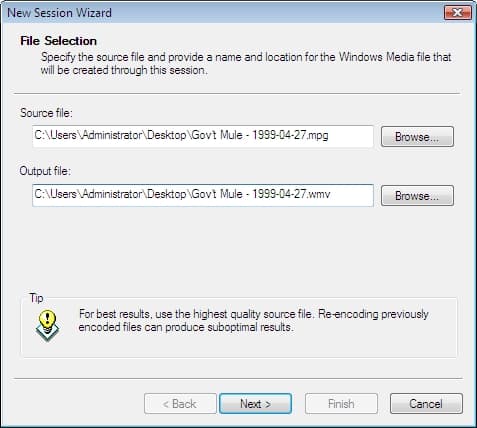
- From the Source file: section, click the Browse button. Navigate to the file you want to convert into a wmv, select it, and click OK. The first time you convert a file you may want to go with a smaller one. It will take less time to encode, and if the resulting quality isn’t good enough, you won’t have ‘wasted’ a lot of time. Once you find the settings that work best for playback on your device, you can convert larger/longer videos with confidence.
The default Output file: name and location will be identical to the input file, but with .wmv as the extension. You can change the name and save location of the output file if you wish, by clicking Browse. Once you’re happy with the input and output files, click Next.
- You’ll be prompted to select a Content Distribution method. For the sake of converting your first video file, select Pocket PC as the method. Further down in this tutorial (step 12) I’ll go into more detail on customizing the quality of .wmv. Click Next.
- Review the info on the Encoding Options. You may even want to write it down, so you can compare it to customized video files that you’ll be trying out later. Click Next (not Finish).
- Enter the meta data for your video. This isn’t mandatory, but it does help when you’re searching for files, how they’re displayed in Windows Media Player etc. When you’re done, click Next.
- And now review all of the info for your video conversion. Remove the check from the Begin converting when I click Finish (so that you can preview the encoder window before it’s actually encoding). Click Finish.
- And here it is. The main encoding window. You can click around and explore the various options, but try not to change anything quite yet. You’ll want to create a default Pocket PC video, so that you can compare its quality to the custom videos you’ll create later. Click the Start Encoding button when you’re ready to convert the video.
- Make yourself comfortable. Or, make yourself a cup of coffee. Watching videos encode is about as interesting as watching paint dry.
- By default, the video will go through two ‘passes’.
- Once the conversion has finished, you’ll be presented with a summary screen. Here you can find the resulting file size, bit rates etc. Click Close.
- Navigate to the output file, and upload it to your Windows Mobile device (via ActiveSync or Windows Mobile Device Center in Vista).
- Give the video a play. Watch it in full-screen and try to determine if the audio and video quality are suitable for you.
- At this point, if you’re happy with the resulting file – you’re done. If the quality is good enough for you, you can just repeat the above steps to convert more of your video files. Remember – the resulting file is never going to be better than the original file, but a lot of the time it will be smaller in size, and of decent enough quality to suit a small screen device (as most Windows Mobile products are). If you’d like to try customizing the videos to go for higher audio, video (or both) quality – keep reading.
- Using the same file that you converted in steps 1-14 (so you can compare the resulting quality), repeat the same steps (but choose a different name for the resulting file, otherwise you’ll over-write the first .wmv). This time when you get to step 7, again be sure to remove the check from the box labeled Begin converting when I click Finish. Click the Properties button and then select the Compression tab. From here, you can increase the quality of the video by selecting a higher bit rate. You can also increase (or decrease) the Audio bit rate.
- Click the Start Encoding button when you’re ready to convert your video again.
- And once again watch as it converts/encodes.
- Click Close after reviewing the results.
- Transfer the new video to your Windows Mobile device and compare the quality to the first video. Depending on what type of Windows Mobile device you have, the higher the quality, the harder it is for the device to play back the file. So files that are encoded at a very “high” quality, actually suffer by jittery playback on your Windows Mobile device. The trick is finding the right bit rate and quality settings that are best for your device.