Somewhat similar to the Using Boot Camp to install Vista on your Mac walkthrough, this tutorial will take you every step of the way through installing Microsoft Windows 7 on your Intel Mac (running 10.5 or later), using Boot Camp.
Note: if you’d rather not dual boot OS X and Windows 7, you can always install Windows 7 in a virtual environment using Parallels Desktop 6.0 for Mac.
To install Windows 7 on your Mac using Boot Camp you will need the following:
- All firmware updates installed on your Mac (use Apple Button -> Software Update… to check)
- A Windows 7 installation DVD
- Your OS X Leopard or Snow Leopard installation DVD
- Around 30GB of empty hard drive space on your Mac. You can probably get away allocating less than 30GB to Windows 7, but it will leave very little room to install anything in Windows.
- An hour if all goes well, up to 5 hours if not
- Though not absolutely required, it’s a VERY good idea to have a complete and up to date Time Machine backup of OS X – it really came in handy for me. Because part of the process involves partitioning your drive, there’s always the distinct chance something will go wrong and everything will be wiped out.
- Patience, possibly a great deal of it. Having a book handy will also help kill time during the partitioning, installing etc).
Installing Windows 7 via Boot Camp
- Here goes. First thing – close absolutely every open program you can. That includes those things running in the Apple Menu that you always forget about. Don’t worry about killing the Dock or Dashboard – having those running is fine.
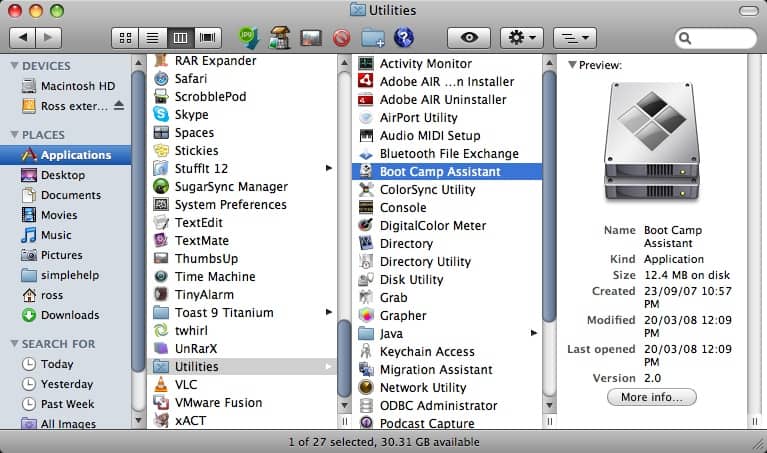
- Now open a Finder and navigate to Applications -> Utilities and double-click Boot Camp Assistant.
- Click Continue on the initial Introduction screen. Ignore the fact that it doesn’t mention Windows 7 as a possible OS to install.
- Now you have to decide how much space you want to allocate to Windows 7. You might be able to get away with going as low as 10GB, but I would highly advise against it. You’ll have almost no space left over to install software, and your page file in Windows might cause frequent crashes. I opted for 20GB, which left me with just a bit over 16GB to use after installing Windows 7.
To change the amount of space to dedicate to Windows 7, click the small divider between Mac OS X and Windows, and drag it to the left.
- Once you’ve determined how much space you want to allocate to Windows 7, click the Partition button.
- The partitioning itself doesn’t take particularly long. If you receive an error, proceed to step 10 of the “How to install Vista with Boot Camp” tutorial. It provides all the troubleshooting info you need to resolve partitioning issues. Once you’ve cleared up any problems, or if everything just goes smoothly, proceed with the next step in this tutorial.
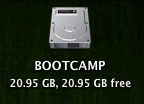
- Once completed you’ll notice a new BOOTCAMP drive on your desktop.
- Now insert your Windows 7 DVD and click the Start Installation button.
- Your Mac will restart, and Windows 7 will boot. You’ll be prompted with a window asking you which partition you want to install Windows on. Select the one with BOOTCAMP in the Name column. Selecting anything else may wipe out OS X or cause serious problems. Then select the Drive options (advanced) link.
- With the BOOTCAMP volume still selected, click the Format link.
- Click OK.
- And Windows 7 will begin to install. It’s a fairly boring process, so you may want to grab yourself a cup of coffee or your beverage of choice. But don’t go too far away, because when your system reboots, you’ll need to remove the Windows 7 DVD.
- With the Windows 7 DVD removed, your Mac will automatically boot back into Windows 7, and the installation will complete. You’ll be prompted to select your language, keyboard layout etc. The rest of the Windows 7 installation process is very straight forward.
- Once the installation has completed and your Mac has restarted again, you’ll be able to use Windows 7. WiFi will work immediately (no drivers to install) so connect to the Internet. Windows 7 will then begin to download updates, including the proper video card driver. Let it do its thing.
- Once completed, you’ll be prompted to reboot yet again. Do so.
- Once Windows 7 boots back up again, you’ll notice the resolution is much better, and you can enable the advanced graphics features.
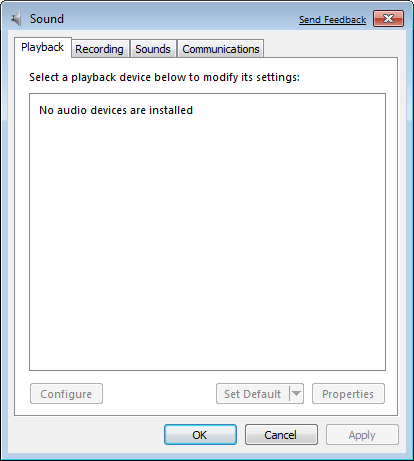
- But if you check for sound, you’ll notice there are no sound drivers installed.
- Insert your OS X Leopard (or Snow Leopard) DVD. When prompted, select Run setup.exe. Note: If you’re using Snow Leopard and a message pops up saying “Remote Install Mac OS X”, close that window and eject the CD. Put the CD in again and this time select “Open folder to view files”, navigate to the Bootcamp folder, and run setup.exe.
- The Boot Camp installer will launch. Click Next to begin.
- Select I accept the terms in the license agreement and then click Next again.
- Make sure that Apple Software Update for Windows is checked, and click Install.
- The Boot Camp installer will do its thing, and install all the required drivers.
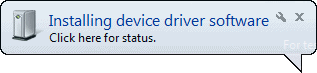
- Notifications will pop up with each driver that gets installed.
- Once completed, click Finish.
- And yet again you’ll be prompted to reboot. Remove your OS X Leopard DVD from the drive, and click Yes to restart.
- At this point most of the hardware on your Mac should be working in Windows. However, some iMacs and MacBook Pro’s will have to update to the 3.1 version of Boot Camp for Windows. To do so, just follow the few steps in this tutorial.
- Note: If you still have problems with sound not working, you’ll need to install the Realtek drivers. This tutorial will explain what to do.
- That’s it, you’re done! When your Mac boots, hold down the Option key to select which Operating System you want to boot into.









ive installed build 7100 on my macbook aluminum, with its nvidia 9400m and it works the charm, only ahving issues putting bootcamp drivers on, maybe because its a 64 bit version, but had no issues in getting it here.
got it working, just had to manually install the drivers on disc then followed up with the 64bit bootcamp setup. running well so far.
Excellent help. Thanks mate.
PD: Well explained. :O
Hi all and thanks for all great tips above!
I’ve installed W7 RC 7100 on my macbook and all driver including the new updated boot camp 2.1 program and the multi touch driver following Daniel’s instructions. My problem is that there is no option in the Boot Camp control panel to turn on the multi touch features. Any clues on what went wrong?
Regards, Da9l
@Da9l
The MultiTouch gestures supported under MacOS are not supported under Windows. Neither Windows XP or Vista nor Windows 7. There ist just the option to emulate the right click. To get the drivers for the MultiTouch trackpad working, install them as mentioned above and update them via the Apple Software Updater. Other things are not supported as far as I know. Besides I have to say that any version of Windows works best on the MacBook with an external mouse.
Does anybody have better experiences?
Ok, sorry for being unclear. Insted of “multi touch features” I should have written that I can’t see any option to enable the right click emulation in the bootcamp controlpanel. I’ve followed the instructions above and even downloaded and installed the specified drivers explicitly but obviously, I must have done something wrong.
He’s running Snow Leopard. Notice the sold blue scroll bars and the new stacks view beside the settings icon in the finder window.
@Zach -
I assure you, I’m not running Snow Leopard
The scroll bars are just a small hack and I’m not even sure what you’re talking about re: new stacks view, but whatever it is, it’s a part of Leopard (10.5.x).
@Da9l
I had the same problems at the beginning. I recommend installing only the drivers for the MultiTouch trackpad again (from the original Leopard install DVD with Vista compatibility enabled for the install file of the MultiTouch trackpad). After that run the Apple Software Updater again and update the drivers for the MultiTouch trackpad. Restart your Mac and now you should have the tab in the preferences. This should work … if not … hmm …. then, no idea.
Just got Windows 7 RC up and running on my MacPro.
Not able to connect my apple bluetooth mouse or keyboard. Just a spinning “connecting to device”. Had issues with this even in XP, something with passkeys.
Anyone seen any solutions to this?
Ben,
Did you install 64-bit or 32-bit? Gonna try it this weekend and want to know if they’re any “gotchas”
@Eber Irigoyen
Windows Update should find the drivers for you. Alternatively, they come with the boot camp helper on the Leopard DVD.
About 64 Bit Windows 7
I have installed the 64 bit version of windows 7 on my 24″ Early 2008 iMac. The install went smoothly but there were some hitches installing apple’s boot camp helper. Just running setup.exe resulted in an error about not supporting 64 bit windows. I needed run the Apple64 setup program, which is buried in the Apple folder on the disc. It gave me a warning about compatibility, which I ignored, and then I downloaded and installed the boot camp 2.1 update for Vista 64 (again with a compatibility warning, which I ignored). That gave me working sound, iSight, ir remote, and hardware other goodies like keyboard and mouse drivers.
The only ‘issue’ I have is that the boot camp app in the system tray and control panel require admin privileges, so I get a UAC warning whenever I try to open it.
Just a quick note on my experience…
Downloaded the iso, burnt it using disk utility, followed these instructions, and everything works perfectly. No weird heating issues, sound works, as does trackpad (though I wish the two hand scrolling was a little less sensitive and a lot more smooth, but even Mac programs like Camino often can’t get it as smooth as it should be), keyboard lighting, etc.
I’m back in OSX now, as I much prefer the interface and “feel” of the OS, though Windows 7 is pretty nice from what I’ve seen. The only time I see myself using Windows is when I’d like to play a game that Crossover Mac doesn’t work with.
My trouble is that I use a PC keyboard with my new Mac Mini and the ‘Alt’ key doesn’t work as Leopard’s ‘Option key’. When logged into Leopard the Win7 partition doesn’t show up hence no way I could select between 2 OS!
It appears that this is a known issue see http://discussions.apple.com/message.jspa?messageID=9389646#9389646
I followed your instructions. I now have an iMac that is dual-boot (OSX and Win7). Only problem is when I choose to boot into Windows 7 the EFI boot manager seems to hang for about 2 minutes, apparently doing nothing. After than Win7 starts up rather quickly. It’s definitely something to do with the EFI boot manager/loader, and not Windows 7. This is very annoying for me as I am often switching between OSX and Windows (and NO!, I can’t use a VM because I need access to hardware (web cams, USB ports, scanners etc…).
I should mention that both OSX and Vista64 (when I was dual booting with Vista 64) worked really well – either would boot up in less than 30 seconds.
Has anyone managed to solve the slow boot time problem?
@Ben
This is higher up in the comments – I also followed this and it worked fine for me too:
“I had to right click on the device when it was found in bluetooth sync part, and then there is an option for Human Control Devices. (Mice, Keyboards etc…)
I ticked that box and afterwards Windows 7 installed the Apple Keyboard and everything was hunky dory.”
As a side note, on my installation there is a check box in the ‘Services’ tab that says ‘Drivers for keyboard, mice, etc. (HID)’ just check that and it will work!
sfong15, If it is a Microsoft keyboard, the Microsoft keyboard software/pref pane for the Mac will let you switch the Alt/Windows keys.
People that end up with a .iso file on your DVD: use the Disk Utility in the Utilities folder on your Mac. Put your blank disk in, select it in the Disk Utility, then click the burn icon. It will prompt for the location of your ISO file. This will “burn the image” rather than “buring a disk with the image file on it.”
Hi ! An error came up when i run setup.exe on the leopard dvd, is there any way to solve the problem, or at least come back to Mac OS X ?
Hi!, when i run the leopard dvd it says that i must have windows vista or windows xp service pack 2 ? is there any way to solve the problem.. ?
@Jakob
Read my step-by-step guide above in the comments. It will help you to install all necessary things in windows 7.
I have tried installing both win7 x86 and x64 on my unibody macbook pro. I have had no luck getting the keyboard to work correctly. No eject and no fn key. Which means I can’t log in (it’s on a domain and requires ctl-alt-del). I’ve done the 2.1 boot camp with the upgrade from apple.com and I’ve even tried the 3.0 boot camp that is on the latest snow leopard build. No luck. Has anyone else had this problem and solved it?? Thanks.
O.K. I’m seeing a lot of drivers installed from my original Leopard System Disc. It may have fixed the audio problem you warned about. Lots of other drivers. Where are these drivers coming from my Sys.Disc, or the Internet? If they are coming from the original Sys. Disc. will Windows7 update them as needed? I’m still doing the BootCamp drivers install so I don’t know if this old Leopard disc is going to cut it.
Im running Windows 7 RC (Build 6.1.7100) on my MacBook Pro (latest single frame body).
When I try to install the BootCamp driver disc, it quits the installer with the error code 2229.
Anybody know, how to solve this?
ok so…
I have a 20 inch imac. I recentley installed Windows 7 using bootcamp. I am currently on my windows os and need to switch back to Mac os. My wireless ketboard is disconnected and it wont let me click options in boot up to go baack to mac os. I have connected a usb keyboard and mouse and it has the same problem but i am able to use it on my windows login. The bootcamp wont run on my windows since its a 64 bit.
HOW THE HELL DO I GET MY MAC OS BACKKK??????????
Musclyman246, hold down the option key when you start booting.
I installed Windows 7 RC on a partition for my new unibody MacBook Pro. I’m having problems with right click tho. I used to have no sound but installed the RealTek drivers and all is fine there. I installed the Apple update for the trackpad in Bootcamp, still no right click ability. I don’t take a mouse everywhere, is there any way to get this to work?
Hi guys,
I have a unibody MacBook Pro and was able to successfully install the Windows 7 Beta back in February with no problems. I recently decided to upgrade to RC1 and am having problems with both installation and starting up once it’s installed. Namely I get a black screen, completely blank when I try to boot into Windows. Any ideas?
MIKE
Mike, I don’t know if this will help you out, but make sure your partition is 20 gig or more. The OS loves disk space, my install failed because I originally didn’t have enough.
@Sus
Maybe this can help.
http://snajd-it.blogspot.com/2009/03/error-2229-when-installing-bootcamp-on.html
Ok, I am using a 1.87 GHz iMac. I installed 7 fine, no problems, however, when i put my Leopard install disk in, nothing happens. I go to my comp, and check there, click the cd, and its blank. No error, nothing, just blank. So i go and DL the realtek drivers, try to run them, restart, still had driver issues. I tried the steps that post 100 contained, but got nowhere, since there is nothing listed in the CD. And i know the DVD works becuase just today I reformatted my drive becuase bootcamp required me too.
Any help?
i have a macbook with leopard and i installed the 64 bit windows 7 using the boot camp 2.1 and all the things is working fine what i did is… perhaps the other knows already i just wanted to share :
i inserted the max os x disk 1 then press open to view folder
then press right click the boot camp and choose open in new window
then press drivers to open it then press Apple to open it
in there there is boot camp 64 so what i did is press it and install by running the program because there is a message will pop up that compatabilty but i took the risk but it is worth all of my drivers is working and untill now it is working fine. If ever you already find out how just ignore my message
*
just add in it
what i am saying is if you already finished installing the windows 7 64 bit and trying to install boot camp that was the next that you will do above
To BSOD people:
I had this problem trying to install 32-bit Win7 on my iMac 6,1 2.16Ghz with GeForce 7300 GT on a 24″. Specifically, I would get BSOD during the install with a 10sec memory dump showing an error with nvlddmkm.sys with code 116. Tried to boot Win7 in safe mode would not complete the install. So I booted to Mac and finished install using VMWare, uninstalled the graphics drivers from the Windows Device Manager so that it used just VGA drivers, then booted into Win7. From here I was able to run Win7 in low resolution but at least internet worked. I installed Nvidia’s Win7 185.85 WHQL drivers, rebooted, and got BSOD. Back to safe mode and tried XP 181.22 WHQL someone suggested and still BSOD. Then I tried Vista 169.25 Forceware and it finally worked, however, I still have reliability problems. I left it overnight and found a BSOD with a new error so it seems to be specifically Nvidia driver issues.
Anyone else with any thoughts on Nvidia drivers?
For those who come after me: I just lost two hours of my life, figuring out that the SuperDrive must be plugged directly into the Macbook Air for it to be able to boot from the DVD. If it’s plugged into the USB hub of the 24″ Cinema display, all you see is a grey apple logo for a very long time…
Mac newbie here, would appreciate some help on this:
Had some issues trying to follow the steps above, and can’t figure them out. When starting the installation after doing steps 1 through 8, it completely skips steps 9 and outward, jumping right to the language/keyboard setup described in step 13. It asks for drivers, but I’m not even able to eject the W7 dvd…
After trying a couple of times (restarting from scratch), I just removed the partition and gave up. When I started my Mac today, it said “No boot disk (or device??) found…..”, so I had to restart again with the Option key pressed. I then got only the Macintosh HD option.
So, two questions:
1. Anyone know why it happens as described above when I try to install?
2. Is it possible that I have messed up my Mac OS X installation? Not too worried as I have a TM back up and have been considering a clean install anyway…
BTW, I have a early 2009 iMAC, 3,06GHz, 4GB RAM, ATI.
Anyone having problems with OpenGL on Windows RC7 using bootcamp? If so, have you come up with a solution for this one?
I have a intel 2 core macbook from 2007 with a mobile intel(R) 945 express chipset family card with WDDM 1.0 something…
I have tried to install the latest GMA driver for 32-bit windows vista from intel but the OS refuses to install it.
I have the same situation as Roger RS #135. My computer a early 2009 Mac Book Pro. Step 9 never happens. A black screen with “loading files” appears and the disc is read. Then a screen called “Insatll Windows” asks for language, Time etc. The only way I can get the disc out of the drive is to reboot and press the eject button at the after the chimes. What do I have to do to get to step 9?
I couldn’t get the burn disc to be recognized during installation, so I used the disc utility instead of just sticking in burn folder and selecting burn.
I am having the same problem as #135 & #137. I got my install disc out. I have a MacBook purchased last October. I also had my Time Machine backup. You just shouldn’t be doing this install without doing your backup first.
Everything worked just as you pointed out on my Mac Pro 8 core and Windows 7 is working great. Even better Fusion can run the same bootcamp partition of Windows 7 virtually,
For what it’s worth, I got Windows 7 32bit to work great using these directions on my new Macbook Pro, EXCEPT… since it installed a bunch of drivers that were wrong (like an ATI driver and some other things), I made sure to tell Windows to update the video card driver and the network drivers itself before I let it reboot. Things seem to work great!
I got the new Macbook pro and i get the 2229 errror.
However i cant follow the above steps since there is no table called “Verification” in my Bootcamp.msi, i changed all the = 600 but still doesnt work.
Any ideas?
Great Tutorial !
Why does Aero not work ?
That was ofcourse a reply to Daniel and his tutorial for the 2229 error.
Really frustrating. Glad anyone could help or point me in the right direction.
Cheers, great guide otherwise.
I have had my W7 partition reformatted to the MacOS ???. I decided to do a major cleanup, tossing out some downloaded apps that I have never used, lots of orphaned plists, renamed the W7 partition from “untitled” to “Windows” and did a bootable backup with CCC.
Now the partition shows up in Disc Utility as a MacOS Extended partition of 31.4 GB containing 45 files. When I fire up Boot Camp Assistant it does not show up as a separate volume and the following text is in the “Create or remove a Windows Partition” window, “This disk is your MacOS X startup disk and appears to have been partitioned by another utility. The only option I have then is to erase the whole disk. And of course Disk Utility will not recombine the two partitions. Any clues please on how to get the space back and start over?
Dude i just installed RC7 on my macbook1.1 it is working flawlessly. Sweet! i cant wait for Snow…
Maybe you should just grind your teeth and wait for Snow Leopard. Boot Camp 3.0 supposedly has a way better support for Windows 7 (and even HFS+) – and, for those too eager to wait a beta version of BC3.0 has already leaked to mininova.
Thought I’d continue this horrid trail of Windows 7 issues, via bootcamp
Gaming issues:
I’ve just spent all day installing windows 7 and games on my macbook pro (2009 unibody) within bootcamp- only to come to this barrier telling me that Direct X (when trying to run Call of Duty 4) has encountered an “unrecoverable error”. My audio is fine. None of my games within Steam want to load either. I’m wondering, is it something to do with Windows drivers (possibly video, heck, I really don’t know) or my Mac?
Or do none of you game on a mac? :l
I discovered that a USB hub/card reader combo device was causing my Windows boot time to increase significantly (over 2 minutes). Unplugging this USB device solved the problem.
Just wanted to say thank you so much for the awesome Tutorial – we just installed Bootcamp & Win 7 on our Macbook Pro with no issues whatsoever! Brilliant. =)
@Charls post 34
had/have the same prob think its is because of the 64 bit and you /I need the 32 bit, Im getting that now and will post back later