How to play MP3 files in Fedora
As of 2020 this guide is still completely accurate if you’re using a very old version of Fedora. However, all modern versions of Fedora support MP3 out of the box now.
Why doesn’t didn’t Fedora support MP3 ‘out of the box’?
Fedora cannot include support for MP3 or DVD video playback or recording. MP3 formats are patented, and the patent holders have not provided the necessary licenses. Fedora also excludes other multimedia software due to patent, copyright, or license restrictions, such as Adobe Flash Player and RealNetworks RealPlayer.
That doesn’t mean you can’t play .mp3 files in Fedora, it just takes a bit of work (not much).
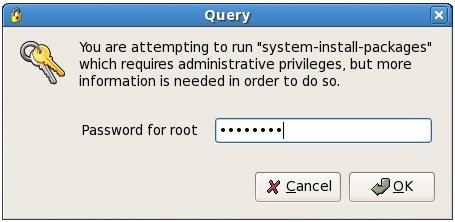
If you’ve seen the following screen (or something familiar), follow the steps below and you’ll be playing MP3s in Fedora in no time at all.

I’ve tried a number of tutorials, steps and guides – the following tutorial is almost certainly not the only way to get MP3s playing, but it’s the one that worked for me, with the least hassle.
- Start by clicking Applications and then select Add/Remove Software.
- When prompted for your root password, enter it and click OK.
- Select Applications from the left column, and then Sound and Video from the right column. Make sure to place a check in the Sound and Video entry. Click the Optional packages button.
- Scroll down to xmms – version number – The X MultiMedia System, a media player and place a check in the box next to it. Click Close.
- Back at the Package Manager window, click Apply. A Package selections window will appear – click the Continue button.
- Don’t be surprised (or worried) if an “unable to verify” window appears. Just click Install anyway.
- After a while, you should get a Software installation successfully completed window. Click OK.
- Locate an MP3 on your hard drive, right-click it and select Properties from the menu.
- Select the Open With tab at the top, and select Audio Player from the list of applications. Then click Close.
- Now you’ll have to fire up your web browser and head to (Update: link doesn’t work, search Google for: xmms-mp3-1.2.10-16.fc5.i386.html). On this page, download the file named xmms-mp3-1.2.10-16.fc5.i386.rpm. It should work with any version of Fedora higher than 4 (for me it worked in 6). Once its finished downloading, double-click it.
- Again you’ll be prompted for your root password. Enter it in the space provided and click OK.
- Click Apply to install the package.
- Once it has completed installing, locate an mp3 and double-click it. Ta-da! You can now listen to all your MP3s in Fedora.